Install the Retainful plugin on your WordPress site and connect it with a token — for WordPress sites without WooCommerce.
This guide is for WordPress sites without WooCommerce. If WooCommerce is installed and active on your site, follow Connect WooCommerce instead.
Use the Retainful plugin to connect a regular WordPress site — a blog, business site, or landing page — to Retainful. Once connected, you can show Retainful signup forms and popups on your site, grow your list, and email your subscribers with campaigns and automations.
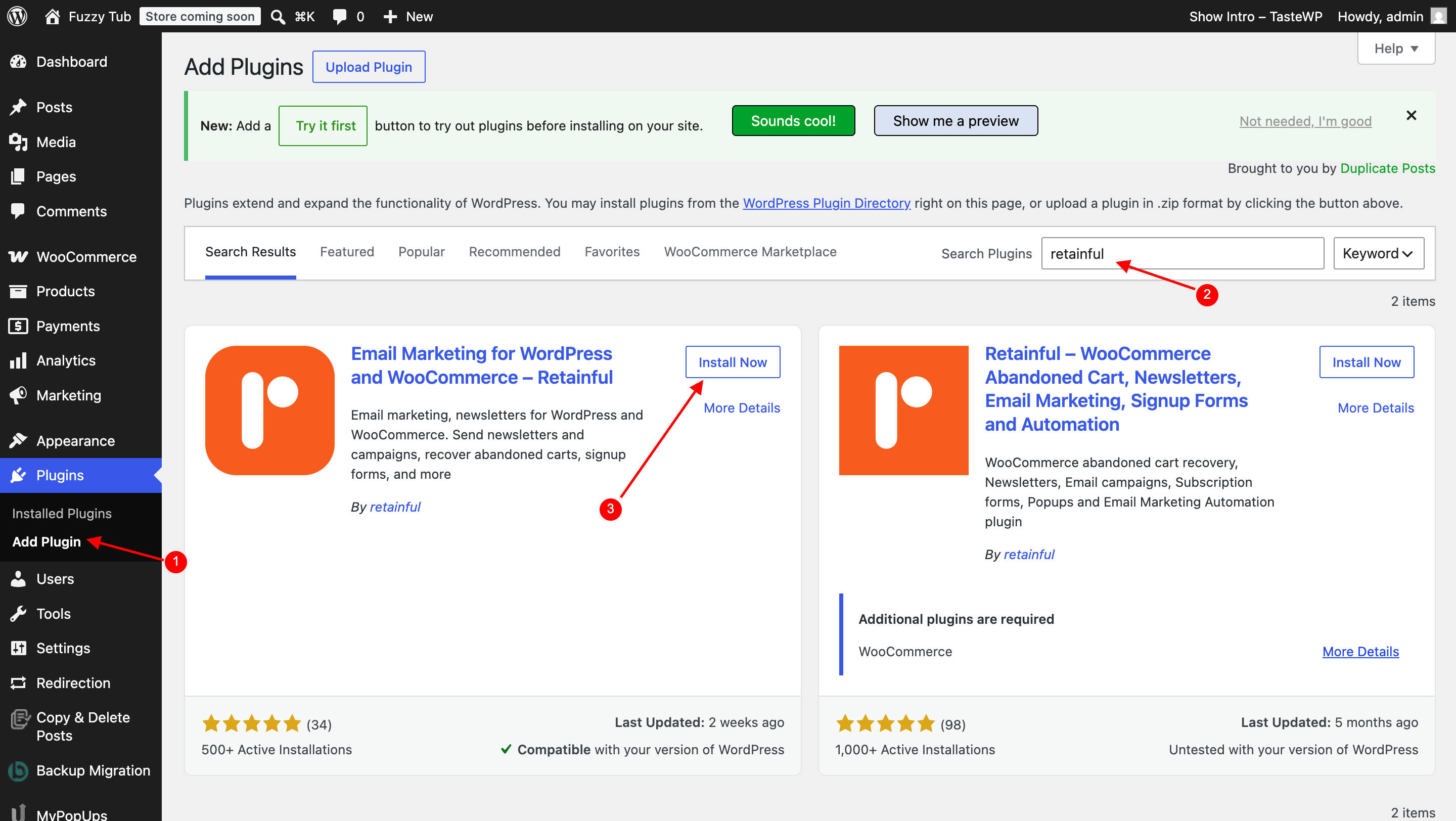
In your WordPress admin, go to Plugins → Add New, search for Retainful, then click Install Now and Activate.
Install the Retainful plugin from Plugins → Add New
2
Copy your token from Retainful
In Retainful, go to Integrations and open WordPress. Click Copy next to the Token field.
Copy the token from Integrations → WordPress
The token expires shortly after it’s shown. If connecting fails, come back to this page and copy a fresh token.
3
Open the WordPress settings in the plugin
In your WordPress admin, click Retainful in the left menu. Under Integrations, find the WordPress card and click View Settings.
Open the WordPress card in the Retainful plugin
4
Paste the token and connect
Paste the token into the API Key field and click Connect.
Paste the token and click Connect
The plugin shows Connected — Your site is connected to Retainful. In Retainful, Integrations → WordPress shows your site under Connected Site with a Connected badge.
Your site is connected
You don’t need to enter your site URL in Retainful — the plugin sends it automatically when you connect.
Once your site is connected, forms and popups you publish in Retainful appear on your site automatically — no code or theme editing needed. See Create a form to build your first one.
If you use a caching plugin (like WP Rocket or LiteSpeed Cache) and a new popup isn’t showing, clear your site cache and check again.
A Retainful organization can connect only one platform — Shopify, WooCommerce, or WordPress. If your organization already uses another platform, the WordPress page shows Platform Integration Conflict. To connect a WordPress site, create a new organization and connect it there.Each organization connects one WordPress site. Connecting a different site replaces the previous one.
The token expires shortly after it’s shown. Go back to Integrations → WordPress in Retainful, copy a fresh token, and click Connect in the plugin again right away.
Connect button fails with "Failed to connect to Retainful"
Your server needs to reach Retainful over the internet. Check that your host or a security plugin isn’t blocking outgoing requests, then try again with a fresh token.
Cloudflare or a security plugin blocks the connection
Firewalls like Cloudflare Bot Fight Mode, Wordfence, or other security plugins can block Retainful’s requests to your site’s REST API (/wp-json/). Temporarily disable the rule (or add an exception) while connecting, then re-enable it.
I can't find the WordPress card in the plugin
The WordPress card only appears when WooCommerce is not active. If WooCommerce is active, you’ll see a WooCommerce card instead — follow Connect WooCommerce.
Popups aren't showing on my site
Confirm the plugin shows Connected, the form is published in Retainful, and your site cache is cleared. Also check the form’s display rules.
My site is on localhost or a staging URL
Retainful can only connect to a site that’s publicly reachable. Use a live or publicly accessible staging URL.
To disconnect your WordPress site from Retainful, email support@retainful.com with your organization name and site URL. Your existing contacts and data stay in Retainful.
{"docsConfig":{"theme":"mint","$schema":"https://mintlify.com/docs.json","name":"Retainful","description":"Retainful documentation for Shopify, WooCommerce, and ecommerce businesses. Learn how to recover abandoned carts, create email campaigns, build marketing automations, use the Retainful API, and increase repeat sales through customer retention.","colors":{"primary":"#F85C1B","light":"#FF7A3D","dark":"#D94A0E"},"logo":{"light":"https://mintcdn.com/retainful/g1y_gjHObY2ffyJj/images/Logo.svg?fit=max\u0026auto=format\u0026n=g1y_gjHObY2ffyJj\u0026q=85\u0026s=fa1b4412d689384ddf8a2a0c8363ab08","dark":"https://mintcdn.com/retainful/azsORbPtFH-KdMvR/images/retianful-logo-dark-mode.svg?fit=max\u0026auto=format\u0026n=azsORbPtFH-KdMvR\u0026q=85\u0026s=dc56df36665daea3c9d8b83dcbebc222"},"favicon":{"light":"https://mintcdn.com/retainful/YbnU1lv-LfLa9ysj/images/retainful-fav-icon.svg?fit=max\u0026auto=format\u0026n=YbnU1lv-LfLa9ysj\u0026q=85\u0026s=c19407a1664b24ff3e40b7154d0f8eac","dark":"https://mintcdn.com/retainful/YbnU1lv-LfLa9ysj/images/retainful-fav-icon.svg?fit=max\u0026auto=format\u0026n=YbnU1lv-LfLa9ysj\u0026q=85\u0026s=c19407a1664b24ff3e40b7154d0f8eac"},"appearance":{"default":"light"},"navbar":{"links":[{"href":"https://app.retainful.com","label":"Log in"}],"primary":{"type":"button","label":"Start free","href":"https://app.retainful.com/register"}},"footer":{"socials":{"website":"https://www.retainful.com"}},"integrations":{"gtm":{"tagId":"GTM-T9BMB4BC"}},"errors":{"404":{"redirect":true}},"contextual":{"options":["copy","view","chatgpt","claude","perplexity","mcp","cursor","vscode"],"display":"header"},"styling":{"latex":false},"navigation":{"pages":[]}},"deployment":{"deploymentMetadataValue":{"subdomain":"retainful","hasAudioNarration":false,"actualSubdomain":"retainful","customDomains":["help.retainful.com"],"gitSource":{"type":"github","owner":"mintlify-community","repo":"docs-retainful-58de66c5","deployBranch":"main","contentDirectory":"","isPrivate":true,"mountPath":"","label":""},"chroma":{"collectionId":"7879caa2-4912-48ad-b512-cda5c2571630","liveDeploymentHistoryId":"6ad0b2525ee9fc6a32da1314","schemaVersion":"v3","latestBuiltDeploymentHistoryId":"6ad0b2525ee9fc6a32da1314"},"entitlements":{"AI_CHAT":{"status":"DISABLED"}},"buildId":"6ad0b2525ee9fc6a32da1314","clientVersion":"0.0.3964","searchFilterCounts":[{"language":"default","tag":"Documentation","count":46},{"language":"default","tag":"Automations","count":13},{"language":"default","tag":"Developers","count":11},{"language":"default","tag":"Audience","count":7},{"language":"default","tag":"Use cases","count":7},{"language":"default","tag":"Campaigns","count":5},{"language":"default","tag":"Signup forms","count":5},{"language":"default","tag":"Getting started","count":4},{"language":"default","tag":"Email setup","count":4},{"language":"default","tag":"Account \u0026 billing","count":3}]},"assistantConfig":{"enableAskAiButton":false,"enableStarterQuestions":false,"enableContextualStarterQuestions":false,"enableAskAiSearchBar":true},"hasChatPermissions":false,"hasWebMcpPermissions":false,"toggles":[{"name":"kill-isr","enabled":true,"variant":{"name":"disabled","enabled":false,"feature_enabled":true},"impressionData":false},{"name":"agent-mintlify-slack","enabled":true,"variant":{"name":"disabled","enabled":false,"feature_enabled":true},"impressionData":false},{"name":"editor-v7-file-tree","enabled":true,"variant":{"name":"disabled","enabled":false,"feature_enabled":true},"impressionData":false},{"name":"agent-integrations-settings","enabled":true,"variant":{"name":"disabled","enabled":false,"feature_enabled":true},"impressionData":false},{"name":"automations-pr-grouping","enabled":true,"variant":{"name":"disabled","enabled":false,"feature_enabled":true},"impressionData":false},{"name":"custom-prefix","enabled":true,"variant":{"name":"disabled","enabled":false,"feature_enabled":true},"impressionData":false},{"name":"analytics-v7","enabled":true,"variant":{"name":"disabled","enabled":false,"feature_enabled":true},"impressionData":false},{"name":"user-flows-analytics","enabled":true,"variant":{"name":"disabled","enabled":false,"feature_enabled":true},"impressionData":false},{"name":"no-publish-flow","enabled":true,"variant":{"name":"disabled","enabled":false,"feature_enabled":true},"impressionData":false},{"name":"workos-onboarding","enabled":true,"variant":{"name":"disabled","enabled":false,"feature_enabled":true},"impressionData":false},{"name":"llms-txt-v2","enabled":true,"variant":{"name":"disabled","enabled":false,"feature_enabled":true},"impressionData":false},{"name":"pause-universal-search-reconcile","enabled":true,"variant":{"name":"disabled","enabled":false,"feature_enabled":true},"impressionData":false},{"name":"snapshot-serving-live","enabled":true,"variant":{"name":"disabled","enabled":false,"feature_enabled":true},"impressionData":false},{"name":"stripTemperatureMiddleware","enabled":true,"variant":{"name":"disabled","enabled":false,"feature_enabled":true},"impressionData":false},{"name":"per-site-search-delta","enabled":true,"variant":{"name":"disabled","enabled":false,"feature_enabled":true},"impressionData":false},{"name":"support-platform-pylon-zendesk","enabled":true,"variant":{"name":"disabled","enabled":false,"feature_enabled":true},"impressionData":false},{"name":"snapshot-serving","enabled":true,"variant":{"name":"disabled","enabled":false,"feature_enabled":true},"impressionData":false},{"name":"instant-rollback","enabled":true,"variant":{"name":"disabled","enabled":false,"feature_enabled":true},"impressionData":false},{"name":"granular-notifications-server","enabled":true,"variant":{"name":"disabled","enabled":false,"feature_enabled":true},"impressionData":false},{"name":"granular-notifications","enabled":true,"variant":{"name":"disabled","enabled":false,"feature_enabled":true},"impressionData":false},{"name":"editor-private-page-search","enabled":true,"variant":{"name":"disabled","enabled":false,"feature_enabled":true},"impressionData":false},{"name":"automations-fable","enabled":true,"variant":{"name":"disabled","enabled":false,"feature_enabled":true},"impressionData":false},{"name":"fixed-ai-action-pricing","enabled":true,"variant":{"name":"disabled","enabled":false,"feature_enabled":true},"impressionData":false},{"name":"automation-resolve-merge-conflict","enabled":true,"variant":{"name":"disabled","enabled":false,"feature_enabled":true},"impressionData":false},{"name":"scoped-publishing","enabled":true,"variant":{"name":"disabled","enabled":false,"feature_enabled":true},"impressionData":false},{"name":"mintql","enabled":true,"variant":{"name":"disabled","enabled":false,"feature_enabled":true},"impressionData":false},{"name":"page-level-analytics","enabled":true,"variant":{"name":"disabled","enabled":false,"feature_enabled":true},"impressionData":false},{"name":"editor-version-history-v2","enabled":true,"variant":{"name":"disabled","enabled":false,"feature_enabled":true},"impressionData":false},{"name":"editor-nav-generations","enabled":true,"variant":{"name":"disabled","enabled":false,"feature_enabled":true},"impressionData":false},{"name":"billing-page-v2","enabled":true,"variant":{"name":"disabled","enabled":false,"feature_enabled":true},"impressionData":false},{"name":"workspace-projects","enabled":true,"variant":{"name":"disabled","enabled":false,"feature_enabled":true},"impressionData":false},{"name":"assistant-v5","enabled":true,"variant":{"name":"disabled","enabled":false,"feature_enabled":true},"impressionData":false},{"name":"byok-sep-25","enabled":true,"variant":{"name":"disabled","enabled":false,"feature_enabled":true},"impressionData":false},{"name":"fork-pr-previews","enabled":true,"variant":{"name":"disabled","enabled":false,"feature_enabled":true},"impressionData":false},{"name":"revalidation-jwt","enabled":true,"variant":{"name":"disabled","enabled":false,"feature_enabled":true},"impressionData":false},{"name":"vite-origin","enabled":true,"variant":{"name":"disabled","enabled":false,"feature_enabled":true},"impressionData":false},{"name":"editor-agent-model-picker","enabled":true,"variant":{"name":"disabled","enabled":false,"feature_enabled":true},"impressionData":false},{"name":"billing-updated-9-15","enabled":true,"variant":{"name":"disabled","enabled":false,"feature_enabled":true},"impressionData":false},{"name":"hobby-abuse-scan","enabled":true,"variant":{"name":"disabled","enabled":false,"feature_enabled":true},"impressionData":false},{"name":"dashboard-inbox","enabled":true,"variant":{"name":"disabled","enabled":false,"feature_enabled":true},"impressionData":false}],"isAtlas":false,"googleFontsInlined":false},"customCss":[],"page":{"pagePath":"integrations/wordpress","slug":"/integrations/wordpress","pageMetadata":{"title":"Connect WordPress","description":"Install the Retainful plugin on your WordPress site and connect it with a token — for WordPress sites without WooCommerce.","icon":"wordpress","href":"/integrations/wordpress"},"description":{"compiledSource":"\"use strict\";\nconst {jsx: _jsx} = arguments[0];\nconst {useMDXComponents: _provideComponents} = arguments[0];\nfunction _createMdxContent(props) {\n const _components = {\n p: \"p\",\n ..._provideComponents(),\n ...props.components\n };\n return _jsx(_components.p, {\n children: \"Install the Retainful plugin on your WordPress site and connect it with a token — for WordPress sites without WooCommerce.\"\n });\n}\nfunction MDXContent(props = {}) {\n const {wrapper: MDXLayout} = {\n ..._provideComponents(),\n ...props.components\n };\n return MDXLayout ? _jsx(MDXLayout, {\n ...props,\n children: _jsx(_createMdxContent, {\n ...props\n })\n }) : _createMdxContent(props);\n}\nreturn {\n default: MDXContent\n};\n","frontmatter":{},"scope":{}},"pageType":"default","mdx":{"mdxSource":{"compiledSource":"\"use strict\";const{Fragment:_Fragment,jsx:_jsx,jsxs:_jsxs}=arguments[0];const{useMDXComponents:_provideComponents}=arguments[0];function _createMdxContent(props){const _components={a:`a`,code:`code`,li:`li`,p:`p`,strong:`strong`,tbody:`tbody`,td:`td`,th:`th`,thead:`thead`,tr:`tr`,ul:`ul`,..._provideComponents(),...props.components},{Accordion,AccordionGroup,Check,Frame,Heading,Info,Note,OptimizedImage,Step,Steps,Table,Tip,Warning}=_components;if(!Accordion)_missingMdxReference(`Accordion`,true);if(!AccordionGroup)_missingMdxReference(`AccordionGroup`,true);if(!Check)_missingMdxReference(`Check`,true);if(!Frame)_missingMdxReference(`Frame`,true);if(!Heading)_missingMdxReference(`Heading`,true);if(!Info)_missingMdxReference(`Info`,true);if(!Note)_missingMdxReference(`Note`,true);if(!OptimizedImage)_missingMdxReference(`OptimizedImage`,true);if(!Step)_missingMdxReference(`Step`,true);if(!Steps)_missingMdxReference(`Steps`,true);if(!Table)_missingMdxReference(`Table`,true);if(!Tip)_missingMdxReference(`Tip`,true);if(!Warning)_missingMdxReference(`Warning`,true);return _jsxs(_Fragment,{children:[_jsx(Warning,{children:_jsxs(_components.p,{children:[`This guide is for `,_jsx(_components.strong,{children:`WordPress sites without WooCommerce`}),`. If WooCommerce is installed and active on your site, follow `,_jsx(_components.a,{href:`/integrations/woocommerce`,children:`Connect WooCommerce`}),` instead.`]})}),`\n`,_jsx(_components.p,{children:`Use the Retainful plugin to connect a regular WordPress site — a blog, business site, or landing page — to Retainful. Once connected, you can show Retainful signup forms and popups on your site, grow your list, and email your subscribers with campaigns and automations.`}),`\n`,_jsx(Heading,{level:`2`,id:`requirements`,children:`Requirements`}),`\n`,_jsxs(_components.ul,{children:[`\n`,_jsxs(_components.li,{children:[`WordPress `,_jsx(_components.strong,{children:`6.5`}),` or later.`]}),`\n`,_jsxs(_components.li,{children:[`PHP `,_jsx(_components.strong,{children:`7.4`}),` or later.`]}),`\n`,_jsxs(_components.li,{children:[`The `,_jsx(_components.strong,{children:`Retainful`}),` plugin installed and activated.`]}),`\n`,_jsx(_components.li,{children:`An administrator account on your WordPress site.`}),`\n`,_jsxs(_components.li,{children:[`Your site must be publicly reachable on the internet (local sites like `,_jsx(_components.code,{children:`localhost`}),` can’t connect).`]}),`\n`]}),`\n`,_jsx(Heading,{level:`2`,id:`what-works-on-a-wordpress-site`,children:`What works on a WordPress site`}),`\n`,_jsxs(Table,{children:[_jsx(_components.thead,{children:_jsxs(_components.tr,{children:[_jsx(_components.th,{children:`Feature`}),_jsx(_components.th,{children:`WordPress`}),_jsx(_components.th,{children:`WooCommerce`})]})}),_jsxs(_components.tbody,{children:[_jsxs(_components.tr,{children:[_jsx(_components.td,{children:_jsx(_components.a,{href:`/forms/overview`,children:`Signup forms and popups`})}),_jsx(_components.td,{children:`Yes`}),_jsx(_components.td,{children:`Yes`})]}),_jsxs(_components.tr,{children:[_jsxs(_components.td,{children:[_jsx(_components.a,{href:`/campaigns/overview`,children:`Campaigns`}),` to your contacts`]}),_jsx(_components.td,{children:`Yes`}),_jsx(_components.td,{children:`Yes`})]}),_jsxs(_components.tr,{children:[_jsxs(_components.td,{children:[_jsx(_components.a,{href:`/automations/overview`,children:`Automations`}),` like welcome series`]}),_jsx(_components.td,{children:`Yes`}),_jsx(_components.td,{children:`Yes`})]}),_jsxs(_components.tr,{children:[_jsx(_components.td,{children:`WPForms submissions to Retainful lists`}),_jsx(_components.td,{children:`Yes`}),_jsx(_components.td,{children:`Yes`})]}),_jsxs(_components.tr,{children:[_jsx(_components.td,{children:`Abandoned cart recovery`}),_jsx(_components.td,{children:`No`}),_jsx(_components.td,{children:`Yes`})]}),_jsxs(_components.tr,{children:[_jsx(_components.td,{children:`Order and product sync`}),_jsx(_components.td,{children:`No`}),_jsx(_components.td,{children:`Yes`})]}),_jsxs(_components.tr,{children:[_jsx(_components.td,{children:`Coupon step in automations`}),_jsx(_components.td,{children:`No`}),_jsx(_components.td,{children:`Yes`})]}),_jsxs(_components.tr,{children:[_jsx(_components.td,{children:`Checkout and order-based automation templates`}),_jsx(_components.td,{children:`No`}),_jsx(_components.td,{children:`Yes`})]})]})]}),`\n`,_jsx(Info,{children:_jsxs(_components.p,{children:[`Cart, order, and product features need WooCommerce. If you add WooCommerce to your site later, connect it through `,_jsx(_components.a,{href:`/integrations/woocommerce`,children:`Connect WooCommerce`}),`.`]})}),`\n`,_jsx(Heading,{level:`2`,id:`install-and-connect`,children:`Install and connect`}),`\n`,_jsxs(Steps,{children:[_jsxs(Step,{title:`Install the plugin`,children:[_jsxs(_components.p,{children:[`In your WordPress admin, go to `,_jsx(_components.strong,{children:`Plugins → Add New`}),`, search for `,_jsx(_components.strong,{children:`Retainful`}),`, then click `,_jsx(_components.strong,{children:`Install Now`}),` and `,_jsx(_components.strong,{children:`Activate`}),`.`]}),_jsx(Frame,{caption:`Install the Retainful plugin from Plugins → Add New`,children:_jsx(OptimizedImage,{src:`https://mintcdn.com/retainful/89sMZADMRvx-X_w1/images/Wordpress-install.png?fit=max\u0026auto=format\u0026n=89sMZADMRvx-X_w1\u0026q=85\u0026s=9f144e2ee67555b541733dd43ded66fa`,alt:`Wordpress Install`,\"data-og-width\":`2880`,width:`2880`,\"data-og-height\":`1624`,height:`1624`,\"data-path\":`images/Wordpress-install.png`,\"data-optimize\":`true`,\"data-opv\":`3`,srcset:`https://mintcdn.com/retainful/89sMZADMRvx-X_w1/images/Wordpress-install.png?w=280\u0026fit=max\u0026auto=format\u0026n=89sMZADMRvx-X_w1\u0026q=85\u0026s=2f7d349c9e0c57bbaf3676aac161d664 280w, https://mintcdn.com/retainful/89sMZADMRvx-X_w1/images/Wordpress-install.png?w=560\u0026fit=max\u0026auto=format\u0026n=89sMZADMRvx-X_w1\u0026q=85\u0026s=36244dc4ad37fcb532bc2b2813764123 560w, https://mintcdn.com/retainful/89sMZADMRvx-X_w1/images/Wordpress-install.png?w=840\u0026fit=max\u0026auto=format\u0026n=89sMZADMRvx-X_w1\u0026q=85\u0026s=734d22323ca5561515900381623a447e 840w, https://mintcdn.com/retainful/89sMZADMRvx-X_w1/images/Wordpress-install.png?w=1100\u0026fit=max\u0026auto=format\u0026n=89sMZADMRvx-X_w1\u0026q=85\u0026s=d6ac5b53dc007253e8768e0e7751a287 1100w, https://mintcdn.com/retainful/89sMZADMRvx-X_w1/images/Wordpress-install.png?w=1650\u0026fit=max\u0026auto=format\u0026n=89sMZADMRvx-X_w1\u0026q=85\u0026s=1362d36b23a43f658f9fd60b935a1b6c 1650w, https://mintcdn.com/retainful/89sMZADMRvx-X_w1/images/Wordpress-install.png?w=2500\u0026fit=max\u0026auto=format\u0026n=89sMZADMRvx-X_w1\u0026q=85\u0026s=2e8d07c7b03c6f42aa629153f1efea18 2500w`})})]}),_jsxs(Step,{title:`Copy your token from Retainful`,children:[_jsxs(_components.p,{children:[`In Retainful, go to `,_jsx(_components.strong,{children:`Integrations`}),` and open `,_jsx(_components.strong,{children:`WordPress`}),`. Click `,_jsx(_components.strong,{children:`Copy`}),` next to the `,_jsx(_components.strong,{children:`Token`}),` field.`]}),_jsx(Frame,{caption:`Copy the token from Integrations → WordPress`,children:_jsx(OptimizedImage,{src:`https://mintcdn.com/retainful/qKS262JpQe6eubRZ/images/wordpress-copy-token.png?fit=max\u0026auto=format\u0026n=qKS262JpQe6eubRZ\u0026q=85\u0026s=326d86c623798fc4a859072d8c13f6f8`,alt:`Wordpress Copy Token`,\"data-og-width\":`3018`,width:`3018`,\"data-og-height\":`1412`,height:`1412`,\"data-path\":`images/wordpress-copy-token.png`,\"data-optimize\":`true`,\"data-opv\":`3`,srcset:`https://mintcdn.com/retainful/qKS262JpQe6eubRZ/images/wordpress-copy-token.png?w=280\u0026fit=max\u0026auto=format\u0026n=qKS262JpQe6eubRZ\u0026q=85\u0026s=dd384f44e435531f0a8b08ed7dfb09a7 280w, https://mintcdn.com/retainful/qKS262JpQe6eubRZ/images/wordpress-copy-token.png?w=560\u0026fit=max\u0026auto=format\u0026n=qKS262JpQe6eubRZ\u0026q=85\u0026s=ff3883b84df1ebdf567c752db43888cd 560w, https://mintcdn.com/retainful/qKS262JpQe6eubRZ/images/wordpress-copy-token.png?w=840\u0026fit=max\u0026auto=format\u0026n=qKS262JpQe6eubRZ\u0026q=85\u0026s=44d1924cfab1a9d9e378e97905af10c7 840w, https://mintcdn.com/retainful/qKS262JpQe6eubRZ/images/wordpress-copy-token.png?w=1100\u0026fit=max\u0026auto=format\u0026n=qKS262JpQe6eubRZ\u0026q=85\u0026s=467acf0eecfef4fa11ab418aa0fd138b 1100w, https://mintcdn.com/retainful/qKS262JpQe6eubRZ/images/wordpress-copy-token.png?w=1650\u0026fit=max\u0026auto=format\u0026n=qKS262JpQe6eubRZ\u0026q=85\u0026s=271170586317e457fdb8e405d1b0a202 1650w, https://mintcdn.com/retainful/qKS262JpQe6eubRZ/images/wordpress-copy-token.png?w=2500\u0026fit=max\u0026auto=format\u0026n=qKS262JpQe6eubRZ\u0026q=85\u0026s=b14d93239870aa7a2945428e0a5b93d3 2500w`})}),_jsx(Note,{children:_jsx(_components.p,{children:`The token expires shortly after it’s shown. If connecting fails, come back to this page and copy a fresh token.`})})]}),_jsxs(Step,{title:`Open the WordPress settings in the plugin`,children:[_jsxs(_components.p,{children:[`In your WordPress admin, click `,_jsx(_components.strong,{children:`Retainful`}),` in the left menu. Under `,_jsx(_components.strong,{children:`Integrations`}),`, find the `,_jsx(_components.strong,{children:`WordPress`}),` card and click `,_jsx(_components.strong,{children:`View Settings`}),`.`]}),_jsx(Frame,{caption:`Open the WordPress card in the Retainful plugin`,children:_jsx(OptimizedImage,{src:`https://mintcdn.com/retainful/qKS262JpQe6eubRZ/images/wordpress-settings.png?fit=max\u0026auto=format\u0026n=qKS262JpQe6eubRZ\u0026q=85\u0026s=acaf3ebdf29c06ab4f0c211975f3e53a`,alt:`Wordpress Settings`,\"data-og-width\":`3018`,width:`3018`,\"data-og-height\":`1540`,height:`1540`,\"data-path\":`images/wordpress-settings.png`,\"data-optimize\":`true`,\"data-opv\":`3`,srcset:`https://mintcdn.com/retainful/qKS262JpQe6eubRZ/images/wordpress-settings.png?w=280\u0026fit=max\u0026auto=format\u0026n=qKS262JpQe6eubRZ\u0026q=85\u0026s=8cf3008fb17e504aa30789ffd96e50db 280w, https://mintcdn.com/retainful/qKS262JpQe6eubRZ/images/wordpress-settings.png?w=560\u0026fit=max\u0026auto=format\u0026n=qKS262JpQe6eubRZ\u0026q=85\u0026s=878480cc978469f91738dc4e2f74c716 560w, https://mintcdn.com/retainful/qKS262JpQe6eubRZ/images/wordpress-settings.png?w=840\u0026fit=max\u0026auto=format\u0026n=qKS262JpQe6eubRZ\u0026q=85\u0026s=b3595d0d807a27a5b0d0a670e447dbfa 840w, https://mintcdn.com/retainful/qKS262JpQe6eubRZ/images/wordpress-settings.png?w=1100\u0026fit=max\u0026auto=format\u0026n=qKS262JpQe6eubRZ\u0026q=85\u0026s=fe9dd8b5c25ef0eb92ef362c90ebc52e 1100w, https://mintcdn.com/retainful/qKS262JpQe6eubRZ/images/wordpress-settings.png?w=1650\u0026fit=max\u0026auto=format\u0026n=qKS262JpQe6eubRZ\u0026q=85\u0026s=297e1deea2c3511b1c2b8adb1ed489da 1650w, https://mintcdn.com/retainful/qKS262JpQe6eubRZ/images/wordpress-settings.png?w=2500\u0026fit=max\u0026auto=format\u0026n=qKS262JpQe6eubRZ\u0026q=85\u0026s=58f5d04d9e89006a6bb4aea545fd9555 2500w`})})]}),_jsxs(Step,{title:`Paste the token and connect`,children:[_jsxs(_components.p,{children:[`Paste the token into the `,_jsx(_components.strong,{children:`API Key`}),` field and click `,_jsx(_components.strong,{children:`Connect`}),`.`]}),_jsx(Frame,{caption:`Paste the token and click Connect`,children:_jsx(OptimizedImage,{src:`https://mintcdn.com/retainful/qKS262JpQe6eubRZ/images/wordpress-key.png?fit=max\u0026auto=format\u0026n=qKS262JpQe6eubRZ\u0026q=85\u0026s=8ba3c56d8ebaf2cf6c3449708faa7d09`,alt:`Wordpress Key`,\"data-og-width\":`3012`,width:`3012`,\"data-og-height\":`1540`,height:`1540`,\"data-path\":`images/wordpress-key.png`,\"data-optimize\":`true`,\"data-opv\":`3`,srcset:`https://mintcdn.com/retainful/qKS262JpQe6eubRZ/images/wordpress-key.png?w=280\u0026fit=max\u0026auto=format\u0026n=qKS262JpQe6eubRZ\u0026q=85\u0026s=e5f3bd390d2b39097befa45a922cd0ff 280w, https://mintcdn.com/retainful/qKS262JpQe6eubRZ/images/wordpress-key.png?w=560\u0026fit=max\u0026auto=format\u0026n=qKS262JpQe6eubRZ\u0026q=85\u0026s=cc0ffe165f9d87cb83a03cba22be6031 560w, https://mintcdn.com/retainful/qKS262JpQe6eubRZ/images/wordpress-key.png?w=840\u0026fit=max\u0026auto=format\u0026n=qKS262JpQe6eubRZ\u0026q=85\u0026s=076fc397048a8a1a8065214f3041c1d6 840w, https://mintcdn.com/retainful/qKS262JpQe6eubRZ/images/wordpress-key.png?w=1100\u0026fit=max\u0026auto=format\u0026n=qKS262JpQe6eubRZ\u0026q=85\u0026s=ef73fcfa075a8893fa2250b24c917ba0 1100w, https://mintcdn.com/retainful/qKS262JpQe6eubRZ/images/wordpress-key.png?w=1650\u0026fit=max\u0026auto=format\u0026n=qKS262JpQe6eubRZ\u0026q=85\u0026s=8b398648676333d7a8b09754c08cafe9 1650w, https://mintcdn.com/retainful/qKS262JpQe6eubRZ/images/wordpress-key.png?w=2500\u0026fit=max\u0026auto=format\u0026n=qKS262JpQe6eubRZ\u0026q=85\u0026s=f646b50830cf8f6e3eed7a8a1280009f 2500w`})})]})]}),`\n`,_jsx(Check,{children:_jsxs(_components.p,{children:[`The plugin shows `,_jsx(_components.strong,{children:`Connected — Your site is connected to Retainful.`}),` In Retainful, `,_jsx(_components.strong,{children:`Integrations → WordPress`}),` shows your site under `,_jsx(_components.strong,{children:`Connected Site`}),` with a `,_jsx(_components.strong,{children:`Connected`}),` badge.`]})}),`\n`,_jsx(Frame,{caption:`Your site is connected`,children:_jsx(OptimizedImage,{src:`https://mintcdn.com/retainful/qKS262JpQe6eubRZ/images/wordpress-connected.png?fit=max\u0026auto=format\u0026n=qKS262JpQe6eubRZ\u0026q=85\u0026s=f1a83d8430b2e3b9938b25806b3d1d6c`,alt:`Wordpress Connected`,\"data-og-width\":`3014`,width:`3014`,\"data-og-height\":`1538`,height:`1538`,\"data-path\":`images/wordpress-connected.png`,\"data-optimize\":`true`,\"data-opv\":`3`,srcset:`https://mintcdn.com/retainful/qKS262JpQe6eubRZ/images/wordpress-connected.png?w=280\u0026fit=max\u0026auto=format\u0026n=qKS262JpQe6eubRZ\u0026q=85\u0026s=cafcab7263e6ab816f9139d351169511 280w, https://mintcdn.com/retainful/qKS262JpQe6eubRZ/images/wordpress-connected.png?w=560\u0026fit=max\u0026auto=format\u0026n=qKS262JpQe6eubRZ\u0026q=85\u0026s=b80d52acfd847a3fa3f0a1620d702d88 560w, https://mintcdn.com/retainful/qKS262JpQe6eubRZ/images/wordpress-connected.png?w=840\u0026fit=max\u0026auto=format\u0026n=qKS262JpQe6eubRZ\u0026q=85\u0026s=fc893342e07b38fd65cb3f26ba7bc4f7 840w, https://mintcdn.com/retainful/qKS262JpQe6eubRZ/images/wordpress-connected.png?w=1100\u0026fit=max\u0026auto=format\u0026n=qKS262JpQe6eubRZ\u0026q=85\u0026s=4be622040a0a0fbe10bfed0c01c8e18b 1100w, https://mintcdn.com/retainful/qKS262JpQe6eubRZ/images/wordpress-connected.png?w=1650\u0026fit=max\u0026auto=format\u0026n=qKS262JpQe6eubRZ\u0026q=85\u0026s=1bb19b64626e085a68539605565be755 1650w, https://mintcdn.com/retainful/qKS262JpQe6eubRZ/images/wordpress-connected.png?w=2500\u0026fit=max\u0026auto=format\u0026n=qKS262JpQe6eubRZ\u0026q=85\u0026s=37e289d4cff3c55d2eae2cb6fbdafb40 2500w`})}),`\n`,_jsx(_components.p,{children:`You don’t need to enter your site URL in Retainful — the plugin sends it automatically when you connect.`}),`\n`,_jsx(Heading,{level:`2`,id:`show-signup-forms-on-your-site`,children:`Show signup forms on your site`}),`\n`,_jsxs(_components.p,{children:[`Once your site is connected, forms and popups you publish in Retainful appear on your site automatically — no code or theme editing needed. See `,_jsx(_components.a,{href:`/forms/create-a-form`,children:`Create a form`}),` to build your first one.`]}),`\n`,_jsx(Tip,{children:_jsx(_components.p,{children:`If you use a caching plugin (like WP Rocket or LiteSpeed Cache) and a new popup isn’t showing, clear your site cache and check again.`})}),`\n`,_jsx(Heading,{level:`2`,id:`one-platform-per-organization`,children:`One platform per organization`}),`\n`,_jsxs(_components.p,{children:[`A Retainful organization can connect only `,_jsx(_components.strong,{children:`one`}),` platform — Shopify, WooCommerce, or WordPress. If your organization already uses another platform, the WordPress page shows `,_jsx(_components.strong,{children:`Platform Integration Conflict`}),`. To connect a WordPress site, create a new organization and connect it there.`]}),`\n`,_jsx(_components.p,{children:`Each organization connects one WordPress site. Connecting a different site replaces the previous one.`}),`\n`,_jsx(Heading,{level:`2`,id:`troubleshooting`,children:`Troubleshooting`}),`\n`,_jsxs(AccordionGroup,{children:[_jsx(Accordion,{title:`\"Invalid or expired token\"`,id:`invalid-or-expired-token`,children:_jsxs(_components.p,{children:[`The token expires shortly after it’s shown. Go back to `,_jsx(_components.strong,{children:`Integrations → WordPress`}),` in Retainful, copy a fresh token, and click `,_jsx(_components.strong,{children:`Connect`}),` in the plugin again right away.`]})}),_jsx(Accordion,{title:`Connect button fails with \"Failed to connect to Retainful\"`,id:`connect-button-fails-with-failed-to-connect-to-retainful`,children:_jsx(_components.p,{children:`Your server needs to reach Retainful over the internet. Check that your host or a security plugin isn’t blocking outgoing requests, then try again with a fresh token.`})}),_jsx(Accordion,{title:`Cloudflare or a security plugin blocks the connection`,id:`cloudflare-or-a-security-plugin-blocks-the-connection`,children:_jsxs(_components.p,{children:[`Firewalls like Cloudflare `,_jsx(_components.strong,{children:`Bot Fight Mode`}),`, Wordfence, or other security plugins can block Retainful’s requests to your site’s REST API (`,_jsx(_components.code,{children:`/wp-json/`}),`). Temporarily disable the rule (or add an exception) while connecting, then re-enable it.`]})}),_jsx(Accordion,{title:`I can't find the WordPress card in the plugin`,id:`i-cant-find-the-wordpress-card-in-the-plugin`,children:_jsxs(_components.p,{children:[`The `,_jsx(_components.strong,{children:`WordPress`}),` card only appears when WooCommerce is `,_jsx(_components.strong,{children:`not`}),` active. If WooCommerce is active, you’ll see a `,_jsx(_components.strong,{children:`WooCommerce`}),` card instead — follow `,_jsx(_components.a,{href:`/integrations/woocommerce`,children:`Connect WooCommerce`}),`.`]})}),_jsx(Accordion,{title:`Popups aren't showing on my site`,id:`popups-arent-showing-on-my-site`,children:_jsxs(_components.p,{children:[`Confirm the plugin shows `,_jsx(_components.strong,{children:`Connected`}),`, the form is published in Retainful, and your site cache is cleared. Also check the form’s `,_jsx(_components.a,{href:`/forms/display-rules`,children:`display rules`}),`.`]})}),_jsx(Accordion,{title:`My site is on localhost or a staging URL`,id:`my-site-is-on-localhost-or-a-staging-url`,children:_jsx(_components.p,{children:`Retainful can only connect to a site that’s publicly reachable. Use a live or publicly accessible staging URL.`})})]}),`\n`,_jsx(Heading,{level:`2`,id:`disconnecting`,children:`Disconnecting`}),`\n`,_jsxs(_components.p,{children:[`To disconnect your WordPress site from Retainful, email `,_jsx(_components.a,{href:`mailto:support@retainful.com`,children:`support@retainful.com`}),` with your organization name and site URL. Your existing contacts and data stay in Retainful.`]})]})}function MDXContent(props={}){const{wrapper:MDXLayout}={..._provideComponents(),...props.components};return MDXLayout?_jsx(MDXLayout,{...props,children:_jsx(_createMdxContent,{...props})}):_createMdxContent(props)}return{default:MDXContent};function _missingMdxReference(id,component){throw new Error(`Expected `+(component?`component`:`object`)+\" `\"+id+\"` to be defined: you likely forgot to import, pass, or provide it.\")}","frontmatter":{},"scope":{"config":{},"pageMetadata":{"title":"Connect WordPress","description":"Install the Retainful plugin on your WordPress site and connect it with a token — for WordPress sites without WooCommerce.","icon":"wordpress","href":"/integrations/wordpress"}}},"mdxSourceWithNoJs":null},"mdxExtracts":{"tableOfContents":[{"title":"Requirements","slug":"requirements","depth":2,"children":[]},{"title":"What works on a WordPress site","slug":"what-works-on-a-wordpress-site","depth":2,"children":[]},{"title":"Install and connect","slug":"install-and-connect","depth":2,"children":[]},{"title":"Show signup forms on your site","slug":"show-signup-forms-on-your-site","depth":2,"children":[]},{"title":"One platform per organization","slug":"one-platform-per-organization","depth":2,"children":[]},{"title":"Troubleshooting","slug":"troubleshooting","depth":2,"children":[]},{"title":"Disconnecting","slug":"disconnecting","depth":2,"children":[]}],"codeExamples":{}},"jsLinks":[],"subdomain":"retainful","siteName":"Retainful","title":"Connect WordPress - Retainful","navMaps":{"firstHrefInVersion":{},"firstHrefInLanguage":{}},"lastModified":"2026-09-14T03:03:49.747Z","originalFileLocation":"integrations/wordpress.mdx"},"headHtml":"\u003cscript data-mint-head>(function(){var d=document.documentElement,p=null;if(!p){try{p=localStorage.getItem(\"isDarkMode\")}catch(e){}if(p==='true')p='dark';else if(p==='false')p='light';if(p!=='light'\u0026\u0026p!=='dark'\u0026\u0026p!=='system')p=\"light\"}var r=p==='system'?(matchMedia(\"(prefers-color-scheme: dark)\").matches?'dark':'light'):p;d.classList.remove(r==='dark'?'light':'dark');d.classList.add(r);d.setAttribute(\"data-theme-preference\",p)})();\u003c/script>\u003cmeta data-mint-head name=\"description\" content=\"Install the Retainful plugin on your WordPress site and connect it with a token — for WordPress sites without WooCommerce.\">\u003cmeta data-mint-head name=\"application-name\" content=\"Retainful\">\u003cmeta data-mint-head name=\"generator\" content=\"Mintlify\">\u003clink data-mint-head rel=\"icon\" type=\"image/png\" sizes=\"192x192\" href=\"/mintlify-assets/_mintlify/favicons/retainful/sFkz0TgbYet946pJ/_generated/favicon/android-chrome-192x192.png\" media=\"(prefers-color-scheme: light)\">\u003clink data-mint-head rel=\"apple-touch-icon\" type=\"image/png\" sizes=\"180x180\" href=\"/mintlify-assets/_mintlify/favicons/retainful/sFkz0TgbYet946pJ/_generated/favicon/apple-touch-icon.png\">\u003clink data-mint-head rel=\"icon\" type=\"image/png\" sizes=\"16x16\" href=\"/mintlify-assets/_mintlify/favicons/retainful/sFkz0TgbYet946pJ/_generated/favicon/favicon-16x16.png\" media=\"(prefers-color-scheme: light)\">\u003clink data-mint-head rel=\"icon\" type=\"image/png\" sizes=\"32x32\" href=\"/mintlify-assets/_mintlify/favicons/retainful/sFkz0TgbYet946pJ/_generated/favicon/favicon-32x32.png\" media=\"(prefers-color-scheme: light)\">\u003clink data-mint-head rel=\"shortcut icon\" type=\"image/x-icon\" href=\"/mintlify-assets/_mintlify/favicons/retainful/sFkz0TgbYet946pJ/_generated/favicon/favicon.ico\" media=\"(prefers-color-scheme: light)\">\u003clink data-mint-head rel=\"icon\" type=\"image/png\" sizes=\"192x192\" href=\"/mintlify-assets/_mintlify/favicons/retainful/sFkz0TgbYet946pJ/_generated/favicon-dark/android-chrome-192x192.png\" media=\"(prefers-color-scheme: dark)\">\u003clink data-mint-head rel=\"icon\" type=\"image/png\" sizes=\"16x16\" href=\"/mintlify-assets/_mintlify/favicons/retainful/sFkz0TgbYet946pJ/_generated/favicon-dark/favicon-16x16.png\" media=\"(prefers-color-scheme: dark)\">\u003clink data-mint-head rel=\"icon\" type=\"image/png\" sizes=\"32x32\" href=\"/mintlify-assets/_mintlify/favicons/retainful/sFkz0TgbYet946pJ/_generated/favicon-dark/favicon-32x32.png\" media=\"(prefers-color-scheme: dark)\">\u003clink data-mint-head rel=\"shortcut icon\" type=\"image/x-icon\" href=\"/mintlify-assets/_mintlify/favicons/retainful/sFkz0TgbYet946pJ/_generated/favicon-dark/favicon.ico\" media=\"(prefers-color-scheme: dark)\">\u003cmeta data-mint-head property=\"og:title\" content=\"Connect WordPress - Retainful\">\u003cmeta data-mint-head property=\"og:description\" content=\"Install the Retainful plugin on your WordPress site and connect it with a token — for WordPress sites without WooCommerce.\">\u003cmeta data-mint-head property=\"og:site_name\" content=\"Retainful\">\u003cmeta data-mint-head property=\"og:url\" content=\"https://help.retainful.com/integrations/wordpress\">\u003cmeta data-mint-head property=\"og:type\" content=\"website\">\u003cmeta data-mint-head property=\"og:image\" content=\"https://retainful.mintlify.app/_mintlify/api/og/v2?division=Connect+your+site\u0026amp;title=Connect+WordPress\u0026amp;description=Install+the+Retainful+plugin+on+your+WordPress+site+and+connect+it+with+a+token+%E2%80%94+for+WordPress+sites+without+WooCommerce.\u0026amp;theme=77672df225165d394d648f98\u0026amp;signature=8ee86d587372ef10dff984f63858fad798ae883e3ebcb56c4f3d097c6a18451a\">\u003cmeta data-mint-head property=\"og:image:width\" content=\"1200\">\u003cmeta data-mint-head property=\"og:image:height\" content=\"630\">\u003cmeta data-mint-head name=\"twitter:card\" content=\"summary_large_image\">\u003cmeta data-mint-head name=\"twitter:title\" content=\"Connect WordPress - Retainful\">\u003cmeta data-mint-head name=\"twitter:description\" content=\"Install the Retainful plugin on your WordPress site and connect it with a token — for WordPress sites without WooCommerce.\">\u003cmeta data-mint-head name=\"twitter:image\" content=\"https://retainful.mintlify.app/_mintlify/api/og/v2?division=Connect+your+site\u0026amp;title=Connect+WordPress\u0026amp;description=Install+the+Retainful+plugin+on+your+WordPress+site+and+connect+it+with+a+token+%E2%80%94+for+WordPress+sites+without+WooCommerce.\u0026amp;theme=77672df225165d394d648f98\u0026amp;signature=8ee86d587372ef10dff984f63858fad798ae883e3ebcb56c4f3d097c6a18451a\">\u003cmeta data-mint-head name=\"twitter:image:width\" content=\"1200\">\u003cmeta data-mint-head name=\"twitter:image:height\" content=\"630\">\u003cmeta data-mint-head name=\"msapplication-config\" content=\"/mintlify-assets/_mintlify/favicons/retainful/sFkz0TgbYet946pJ/_generated/favicon/browserconfig.xml\">\u003cmeta data-mint-head name=\"apple-mobile-web-app-title\" content=\"Retainful\">\u003cmeta data-mint-head name=\"msapplication-TileColor\" content=\"#F85C1B\">\u003clink data-mint-head rel=\"canonical\" href=\"https://help.retainful.com/integrations/wordpress\">\u003clink data-mint-head rel=\"alternate\" type=\"application/xml\" href=\"/sitemap.xml\">\u003clink data-mint-head rel=\"alternate\" type=\"text/markdown\" href=\"/integrations/wordpress.md\">\u003cscript data-mint-head type=\"application/ld+json\">{\"@context\":\"https://schema.org\",\"@graph\":[{\"@type\":\"Organization\",\"@id\":\"https://help.retainful.com/#organization\",\"name\":\"Retainful\",\"url\":\"https://help.retainful.com\",\"logo\":{\"@type\":\"ImageObject\",\"url\":\"https://mintcdn.com/retainful/g1y_gjHObY2ffyJj/images/Logo.svg?fit=max\u0026auto=format\u0026n=g1y_gjHObY2ffyJj\u0026q=85\u0026s=fa1b4412d689384ddf8a2a0c8363ab08\"}},{\"@type\":\"WebSite\",\"@id\":\"https://help.retainful.com#website\",\"name\":\"Retainful\",\"url\":\"https://help.retainful.com\",\"publisher\":{\"@id\":\"https://help.retainful.com/#organization\"}},{\"@type\":\"WebPage\",\"@id\":\"https://help.retainful.com/integrations/wordpress#webpage\",\"url\":\"https://help.retainful.com/integrations/wordpress\",\"name\":\"Connect WordPress\",\"description\":\"Install the Retainful plugin on your WordPress site and connect it with a token — for WordPress sites without WooCommerce.\",\"dateModified\":\"2026-09-14T03:03:49.747Z\",\"isPartOf\":{\"@id\":\"https://help.retainful.com#website\"},\"breadcrumb\":{\"@id\":\"https://help.retainful.com/integrations/wordpress#breadcrumb\"}},{\"@type\":\"BreadcrumbList\",\"@id\":\"https://help.retainful.com/integrations/wordpress#breadcrumb\",\"itemListElement\":[{\"@type\":\"ListItem\",\"position\":1,\"name\":\"Connect your site\",\"item\":\"https://help.retainful.com/integrations/shopify\"},{\"@type\":\"ListItem\",\"position\":2,\"name\":\"Connect WordPress\",\"item\":\"https://help.retainful.com/integrations/wordpress\"}]},{\"@type\":[\"Article\",\"TechArticle\"],\"@id\":\"https://help.retainful.com/integrations/wordpress#article\",\"headline\":\"Connect WordPress\",\"name\":\"Connect WordPress\",\"description\":\"Install the Retainful plugin on your WordPress site and connect it with a token — for WordPress sites without WooCommerce.\",\"url\":\"https://help.retainful.com/integrations/wordpress\",\"mainEntityOfPage\":{\"@id\":\"https://help.retainful.com/integrations/wordpress#webpage\"},\"dateModified\":\"2026-09-14T03:03:49.747Z\",\"publisher\":{\"@id\":\"https://help.retainful.com/#organization\"},\"isPartOf\":{\"@id\":\"https://help.retainful.com#website\"}}]}\u003c/script>\u003cscript data-mint-head type=\"application/ld+json\">{\"@context\":\"https://schema.org\",\"@type\":\"WebSite\",\"name\":\"Retainful\",\"creator\":{\"@type\":\"Organization\",\"name\":\"Mintlify\",\"url\":\"https://mintlify.com\"}}\u003c/script>","siteName":"Retainful","nav":{"global":null,"tabs":[{"tab":"Documentation","groups":[{"group":"Get started","pages":[{"title":"Welcome to Retainful","sidebarTitle":"Welcome","icon":"hand-wave","href":""},{"title":"Quickstart","icon":"rocket","href":"/quickstart"}]},{"group":"Connect your site","pages":[{"title":"Connect Shopify","icon":"shopify","iconType":"brands","href":"/integrations/shopify"},{"title":"Connect WooCommerce","description":"Install the Retainful plugin on your WordPress site and link your WooCommerce store.","icon":"https://cdn.simpleicons.org/woo/9ca3af","href":"/integrations/woocommerce"},{"title":"Connect WordPress","icon":"wordpress","href":"/integrations/wordpress"}]},{"group":"Email setup","pages":[{"title":"Sending domains","description":"Verify your own domain with DKIM, SPF, DMARC, and return-path records so your emails reach the inbox.","icon":"globe","href":"/email-setup/sending-domains"},{"title":"Sender addresses","icon":"at","href":"/email-setup/sender-addresses"},{"title":"Deliverability best practices","icon":"shield-check","href":"/email-setup/deliverability"},{"title":"Shortcodes","icon":"brackets-curly","href":"/email-setup/shortcodes"}]},{"group":"Campaigns","pages":[{"title":"Campaigns overview","icon":"envelope","href":"/campaigns/overview"},{"title":"Create a campaign","icon":"paper-plane","href":"/campaigns/create-a-campaign"},{"title":"Email editor","icon":"pen-ruler","href":"/campaigns/email-editor"},{"title":"Personalization","icon":"user-pen","href":"/campaigns/personalization"},{"title":"Campaign analytics","icon":"chart-line","href":"/campaigns/analytics"}]},{"group":"Automations","pages":[{"title":"Automations overview","icon":"diagram-project","href":"/automations/overview"},{"title":"Create an automation","icon":"wand-magic-sparkles","href":"/automations/create-an-automation"},{"title":"Triggers","icon":"bolt","href":"/automations/triggers"},{"title":"Steps","icon":"shoe-prints","href":"/automations/steps"},{"title":"Coupons","icon":"ticket","href":"/automations/coupons"},{"group":"Use cases","icon":"grid-2","pages":[{"title":"Automation use cases","icon":"grid-2","href":"/automations/use-cases/overview"},{"title":"Abandoned cart recovery","icon":"cart-shopping","href":"/automations/abandoned-cart-recovery"},{"title":"Welcome series","icon":"envelope-open-text","href":"/automations/use-cases/welcome-series"},{"title":"Post-purchase \u0026 cross-sell","icon":"heart","href":"/automations/use-cases/post-purchase"},{"title":"Replenishment reminder","icon":"arrows-rotate","href":"/automations/use-cases/reorder-reminder"},{"title":"Win-back","icon":"user-clock","href":"/automations/use-cases/win-back"},{"title":"Back in stock","icon":"bell","href":"/automations/use-cases/back-in-stock"}]},{"title":"Automation analytics","icon":"chart-line","href":"/automations/analytics"}]},{"group":"Audience","pages":[{"title":"Audience overview","icon":"users","href":"/audience/overview"},{"title":"Manage contacts","icon":"address-book","href":"/audience/contacts"},{"title":"Lists","href":"/audience/lists"},{"title":"Segments","icon":"filter","href":"/audience/segments"},{"title":"Import contacts","icon":"file-import","href":"/audience/import-contacts"},{"title":"Export contacts","icon":"file-export","href":"/audience/export-contacts"},{"title":"Custom fields","icon":"sliders","href":"/audience/custom-fields"},{"title":"Suppressed contacts","icon":"user-slash","href":"/audience/suppressed-contacts"}]},{"group":"Signup forms","pages":[{"title":"Signup forms overview","icon":"window-restore","href":"/forms/overview"},{"title":"Create a form","icon":"square-plus","href":"/forms/create-a-form"},{"title":"Form use cases","icon":"lightbulb","href":"/forms/use-cases"},{"title":"Display rules","icon":"crosshairs","href":"/forms/display-rules"},{"title":"Form analytics","icon":"chart-line","href":"/forms/analytics"}]},{"group":"Account \u0026 billing","pages":[{"title":"Team and roles","icon":"users-gear","href":"/account/team-and-roles"},{"title":"Billing and plans","icon":"credit-card","href":"/account/billing-and-plans"},{"title":"Account security","icon":"lock","href":"/account/security"}]},{"group":"WhatsApp","pages":[{"title":"Set up WhatsApp","icon":"comments","href":"/whatsapp/setup"},{"title":"Message templates","icon":"message","href":"/whatsapp/message-templates"}]},{"group":"Troubleshooting (WooCommerce)","icon":"wrench","pages":[{"title":"Fix: \"WooCommerce plugin not installed\"","sidebarTitle":"Fix: plugin not installed","icon":"triangle-exclamation","href":"/troubleshooting/fix-woocommerce-plugin-not-installed"},{"title":"Purchased customers still get abandoned cart emails","sidebarTitle":"Abandoned cart emails after purchase","icon":"cart-shopping","href":"/troubleshooting/woocommerce-abandoned-cart-emails-after-purchase"}]}]},{"tab":"Developers","pages":[{"title":"Developers","href":"/developers/overview"}]}]},"title":"Connect WordPress - Retainful","buildId":"dpl_HcHmUS6i3UwswnTHJUEdcTtwfdTQ","deploymentId":"dpl_HcHmUS6i3UwswnTHJUEdcTtwfdTQ","dynamics":["07c022d89b","a74be98ba7"],"chunks":["Frame-D1UCVuPB.js","DynamicMarkdown-Crwq6WG_.js","zoom-image-lightbox-CFBqa0On.js","lightbox-handle-r17bVUz3.js"]}