Invite a team member
Prefer to watch? See the full flow in the video below, or follow the steps.Before you start: you need permission to manage users in your organization. Have the invitee’s email address and the role they should get ready.
1
Send the invitation
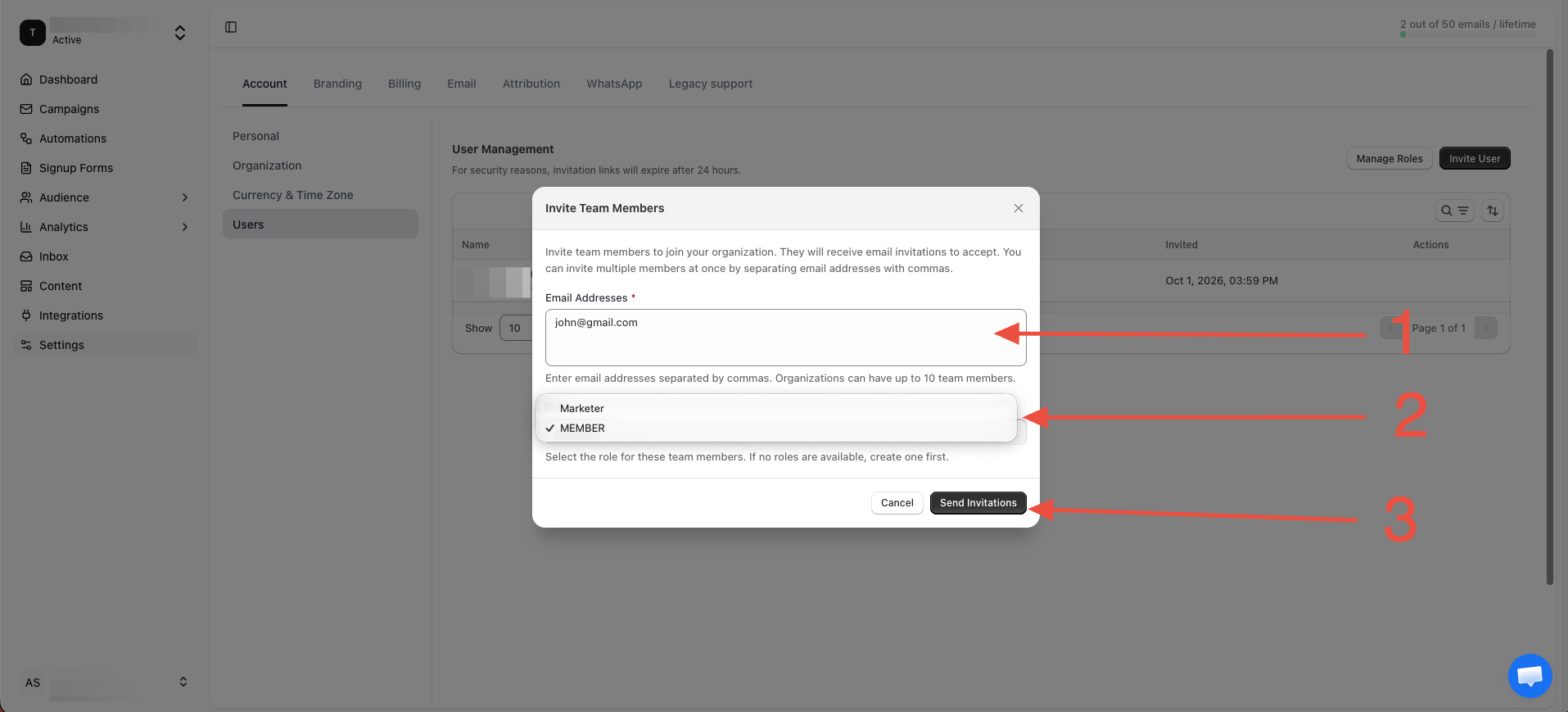
Go to Settings → Account → Users and click Invite. Enter their email and pick a role.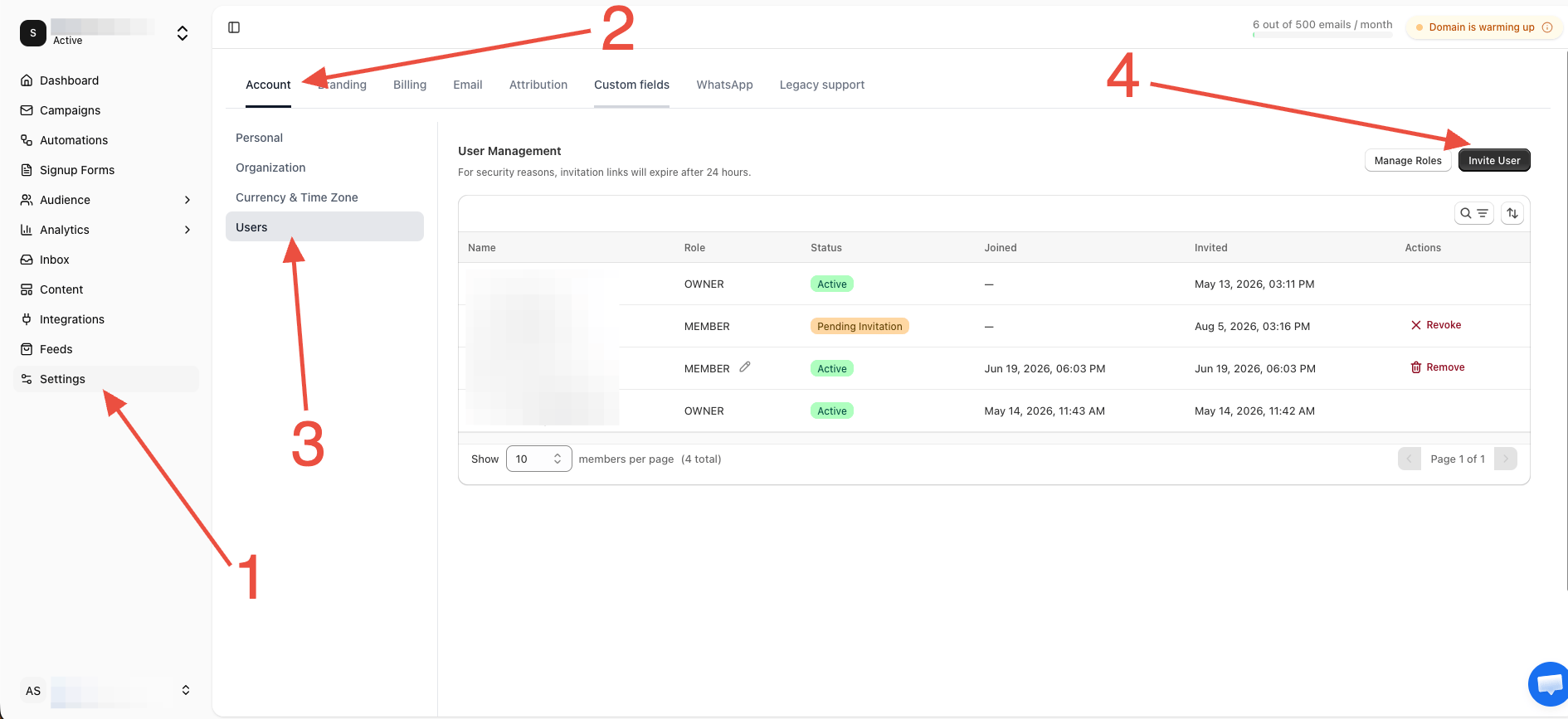
2
They accept
The invitee gets an email link. If they don’t have a Retainful login yet, they create one during acceptance.
3
Manage anytime
From the same page you can change a member’s role or remove them. Pending invitations can be revoked before they’re accepted.
Roles and permissions
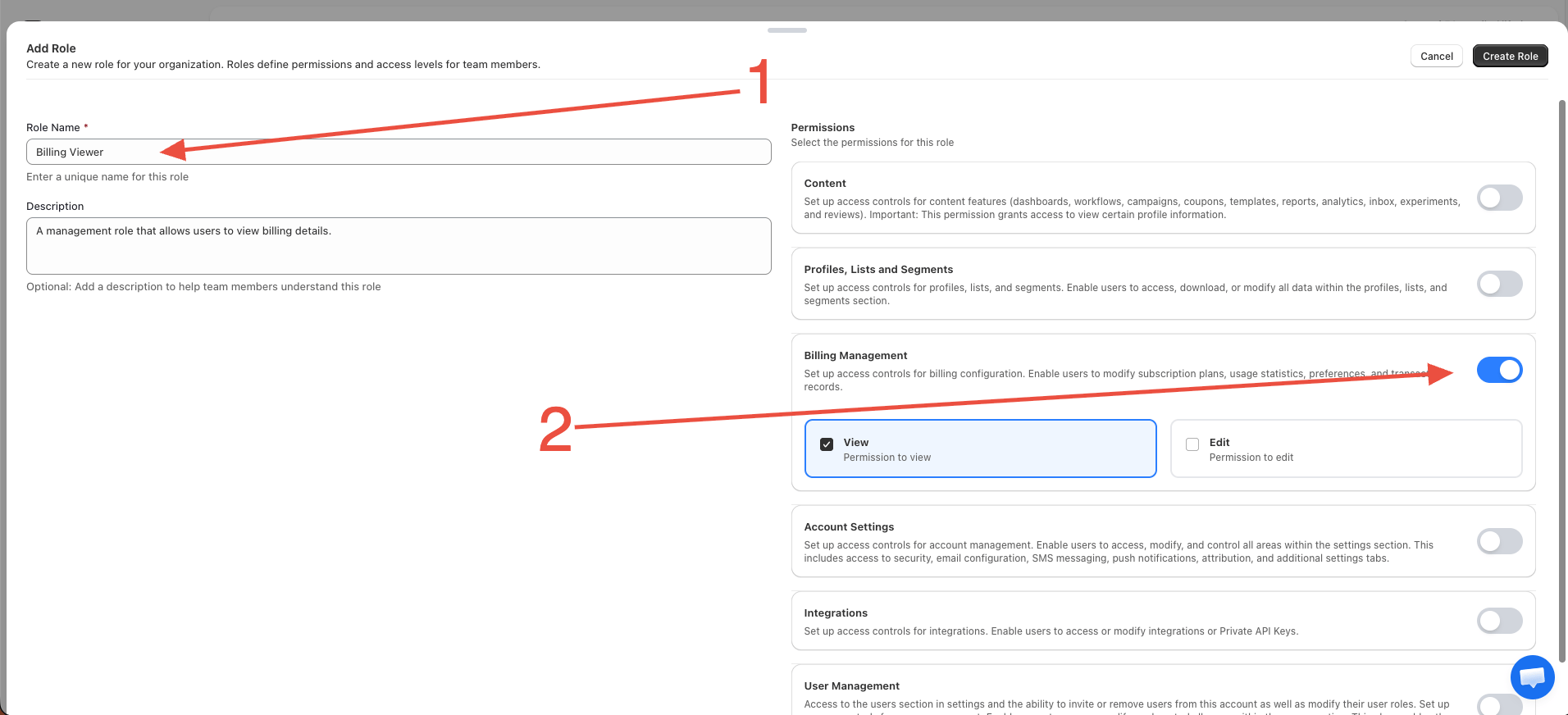
Roles bundle permissions — likecontent:edit, which gates editing campaigns, forms, and templates. Use the built-in roles, or create custom roles with exactly the permissions a job needs:
- Go to Settings → Account → Users → Roles.
- Click Create role, name it, and select its permissions.
- Assign it to members.
Multiple organizations
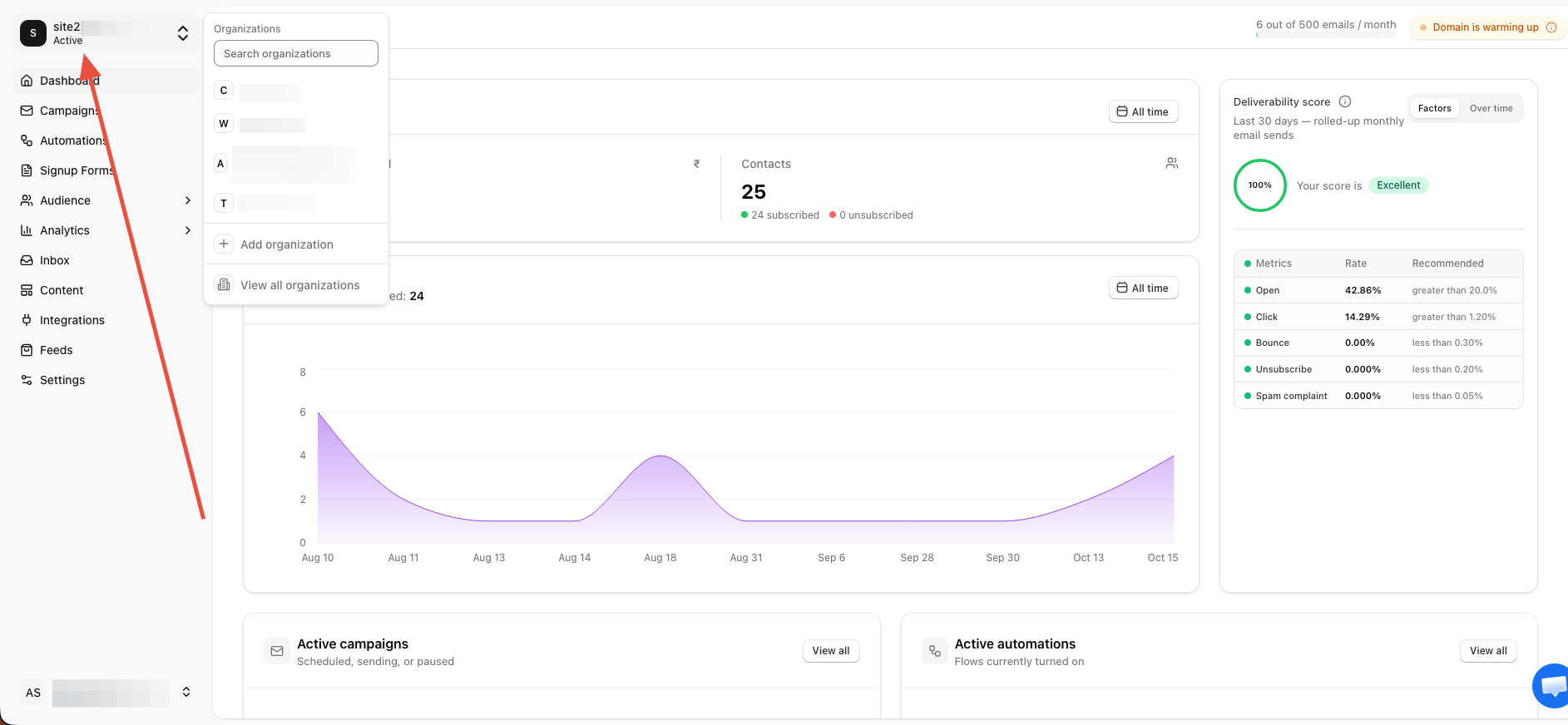
An organization is a workspace — one store (or brand) with its own audience, campaigns, billing, and team. If you run several stores:- Create an organization per store and switch between them from the organization menu.
- Team membership is per organization — invite people only to the workspaces they work in.
- Billing is also per organization; each has its own plan.