What the connection enables
- Customer and order sync — your Shopify customers appear as contacts, and every order is recorded for segmentation and revenue attribution.
- Cart and checkout tracking — Retainful sees when a checkout starts and whether it completes, which powers abandoned cart recovery.
- Product sync — your catalog is available inside the email editor for product blocks and recommendations.
- Discount codes — automations can generate single-use Shopify discount codes on the fly.
- Storefront tracking pixel — records product views and captures email consent at checkout.
Install the app
1
Start the connection
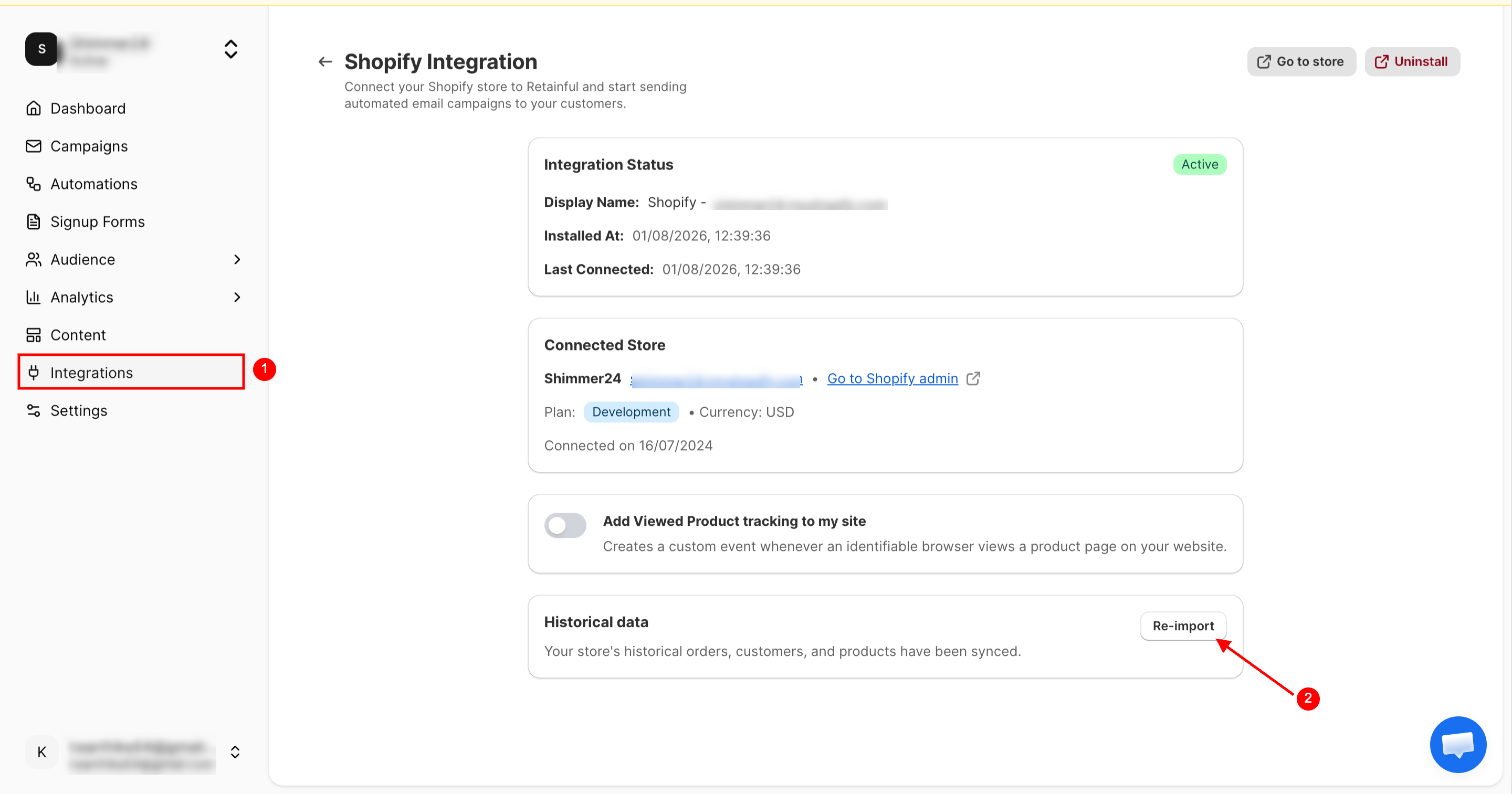
In Retainful, go to Integrations → Shopify, enter your store address (for example 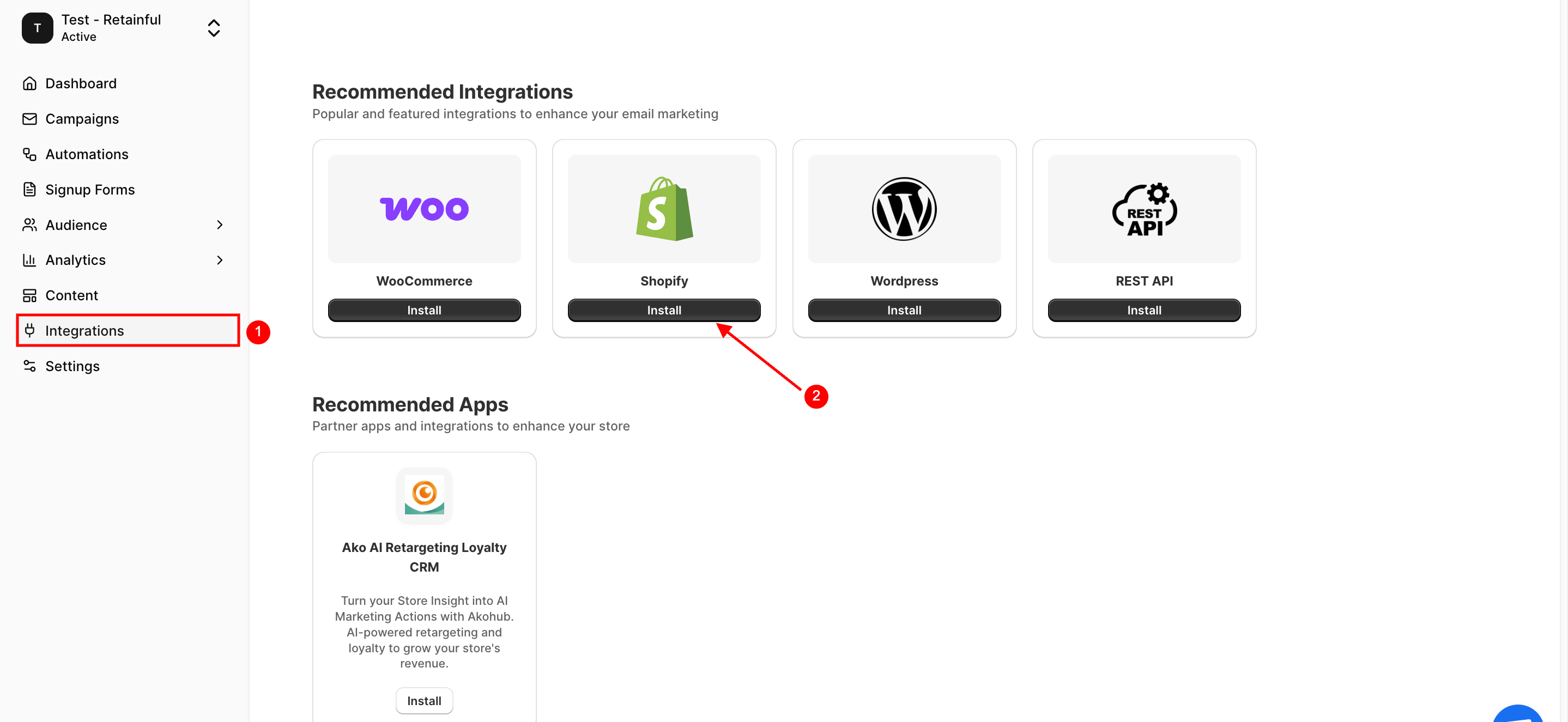
mystore.myshopify.com), and click Connect. You can also install directly from the Shopify App Store.2
Approve permissions
Shopify shows the permissions Retainful needs — reading and writing customers, orders, checkouts, products, and discounts. Click Install to approve.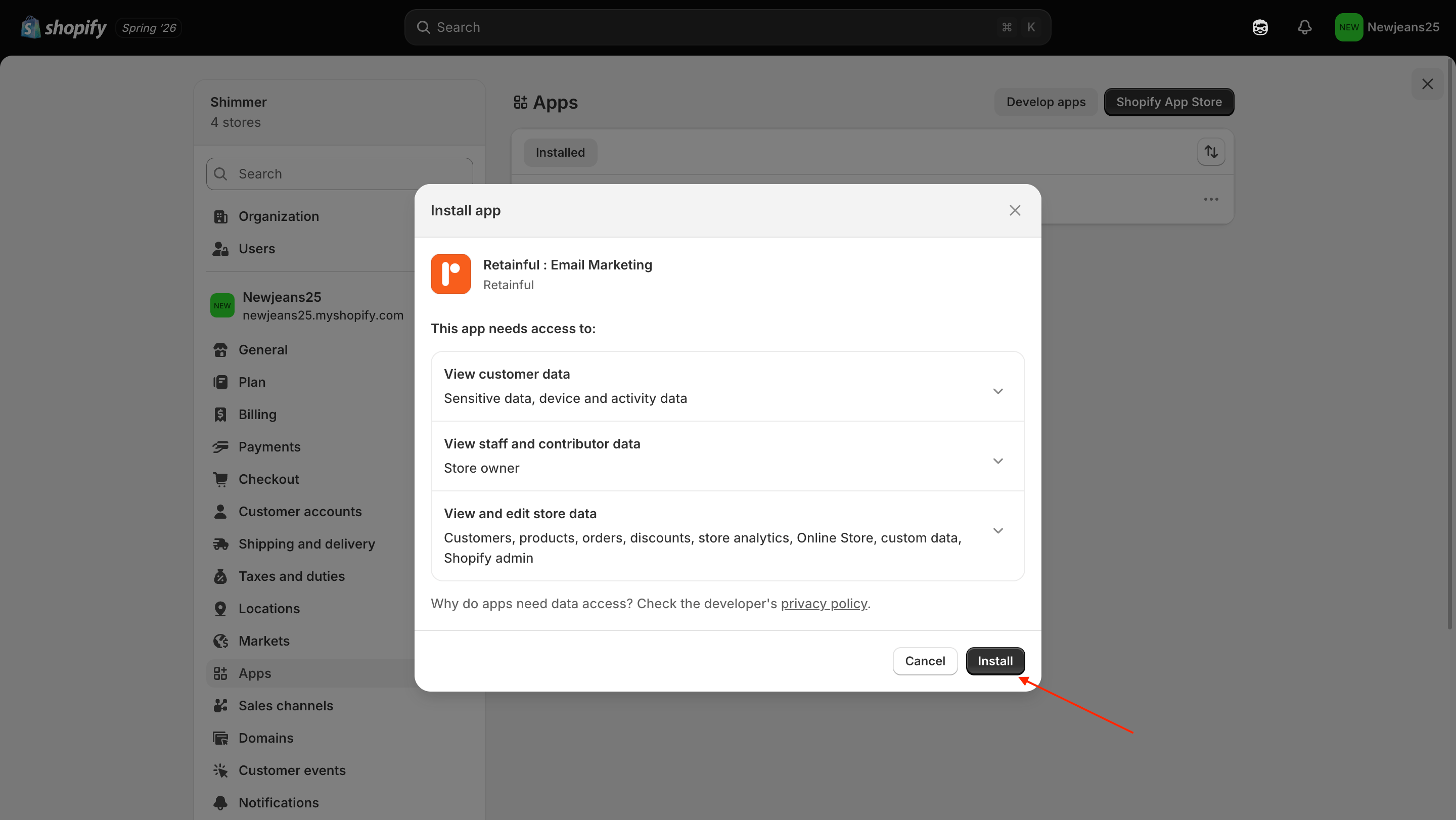
3
Wait for the first sync
Retainful begins importing your customers, products, and order history right away. Large stores may take a while; you can keep working in the meantime.
The Integrations page shows Connected with your store name, and contacts start appearing under Audience → Contacts.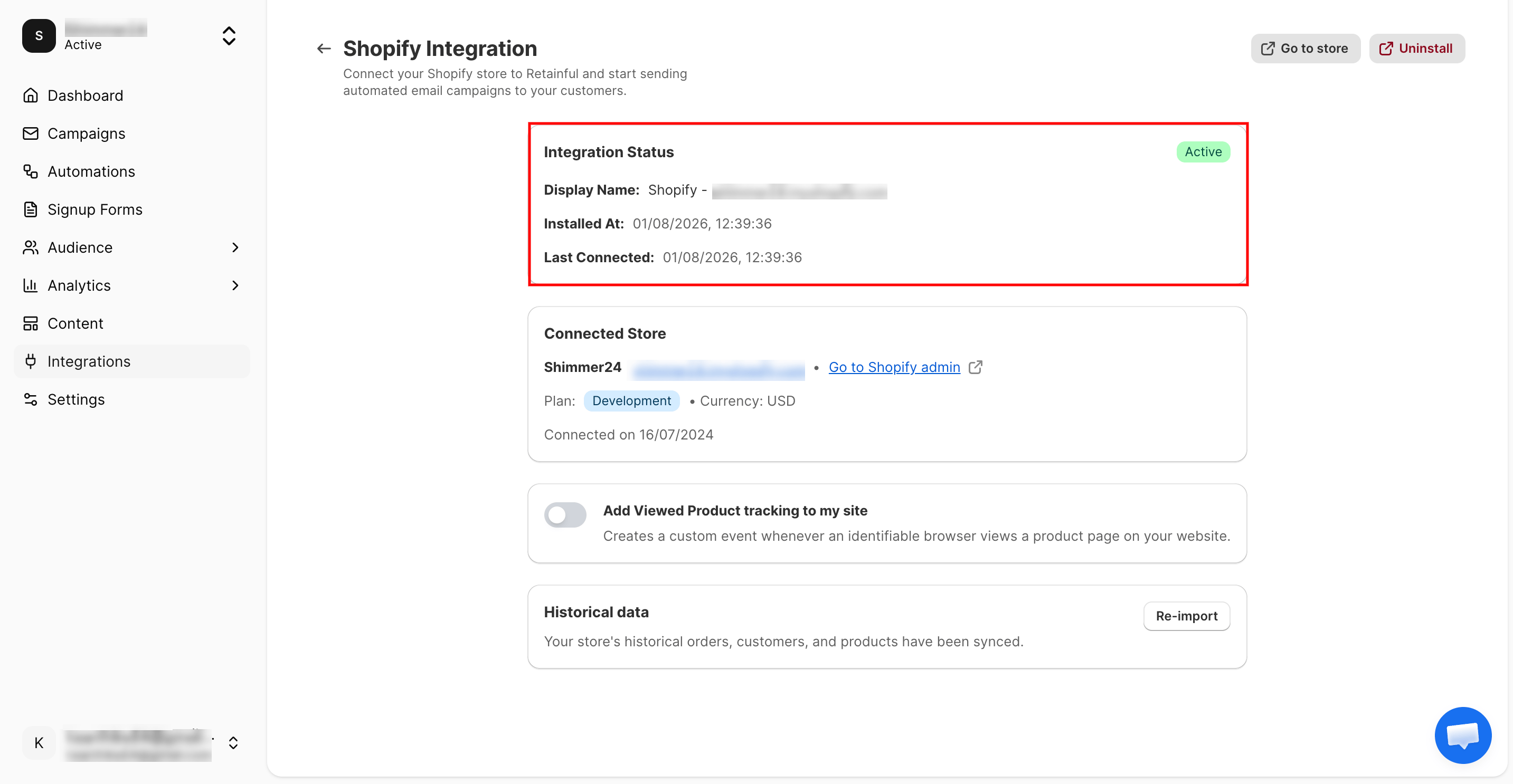
Enable storefront tracking
Theme app extension
The Theme App Extension allows Retainful to display signup forms and popups on your Shopify storefront.- In your Shopify admin, navigate to Online Store → Themes.
- Click Customize on your active theme.
- Open App embeds.
- Enable the Retainful app embed.
- Click Save.
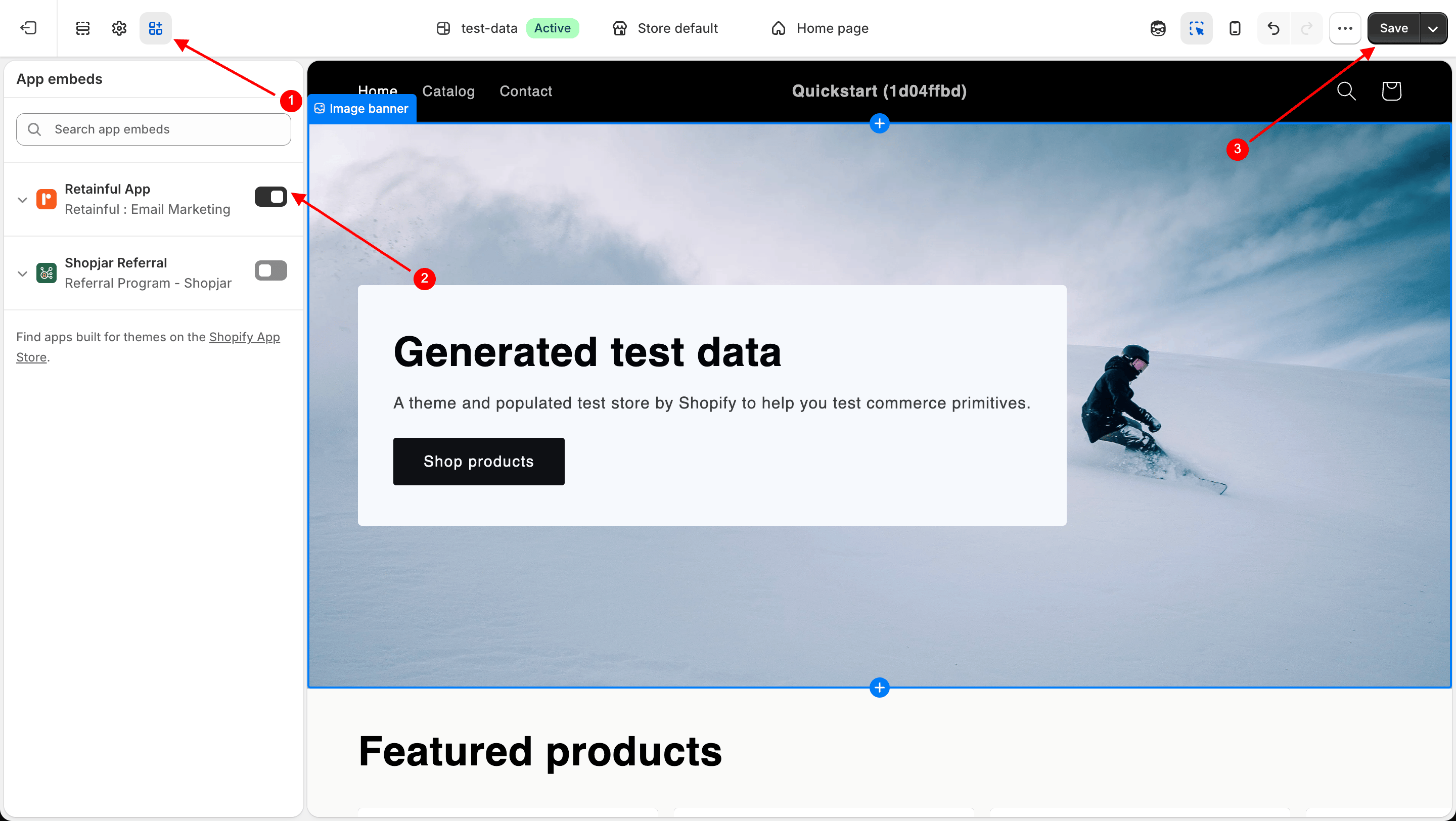
Note: If the Retainful app embed is not enabled, your signup forms and popups will not appear on your storefront.If you see the Enable Theme App Extension notification in the Signup Forms section of Retainful, click the banner and follow the steps above to enable the app embed in Shopify.
Re-sync your store
If your data ever looks out of date, you can trigger a full re-import: go to Integrations → Shopify and click Re-import. This refreshes products, customers, and orders without affecting your automations.