> ## Documentation Index
> Fetch the complete documentation index at: https://help.retainful.com/llms.txt
> Use this file to discover all available pages before exploring further.
# Fix: "WooCommerce plugin not installed"
> What to do when Retainful reports the WooCommerce plugin is not installed, even though you've installed and activated it.
You installed the Retainful plugin on your WordPress site, activated it, and Retainful still says the plugin isn't installed. This almost always means one of two things: a different plugin is installed, or your server is blocking Retainful's verification request.
Work through the steps below in order.
## Step 1: Verify the correct plugin is installed
Retainful looks for one specific plugin: **Email Marketing for WordPress and WooCommerce - Retainful**. An older or similarly-named plugin won't be detected.
To check what you have:
1. Log in to your **WordPress admin**.
2. Go to **Plugins → Installed Plugins**.
3. Search for **Email Marketing for WordPress and WooCommerce - Retainful**.
If it isn't there:
1. Go to **Plugins → Add New**.
2. Search for **Email Marketing for WordPress and WooCommerce - Retainful**.
3. Click **Install**, then **Activate**.
Make sure you're on the latest version, and that the plugin is **Active** rather than merely installed.
## Step 2: Check for connection blocking
If the plugin is installed and active and Retainful still can't see it, your site is almost certainly blocking our request. Common culprits:
* Firewall rules
* Security plugins such as Wordfence or Sucuri
* Hosting-level protections, including Cloudflare or a server firewall
* Any rule that restricts external API requests
Retainful verifies the plugin by making a request **to** your store. If that request never arrives, the plugin looks missing from our side no matter how correctly it's installed.
## Step 3: Allow Retainful through Cloudflare
If your site is behind Cloudflare, allow Retainful's IP address through your security rules.
**On Cloudflare's Free plan**, Bot Fight Mode can't be scoped to a single IP — the custom rule below won't override it. You'll need to turn Bot Fight Mode off. On paid plans, follow the steps below instead.
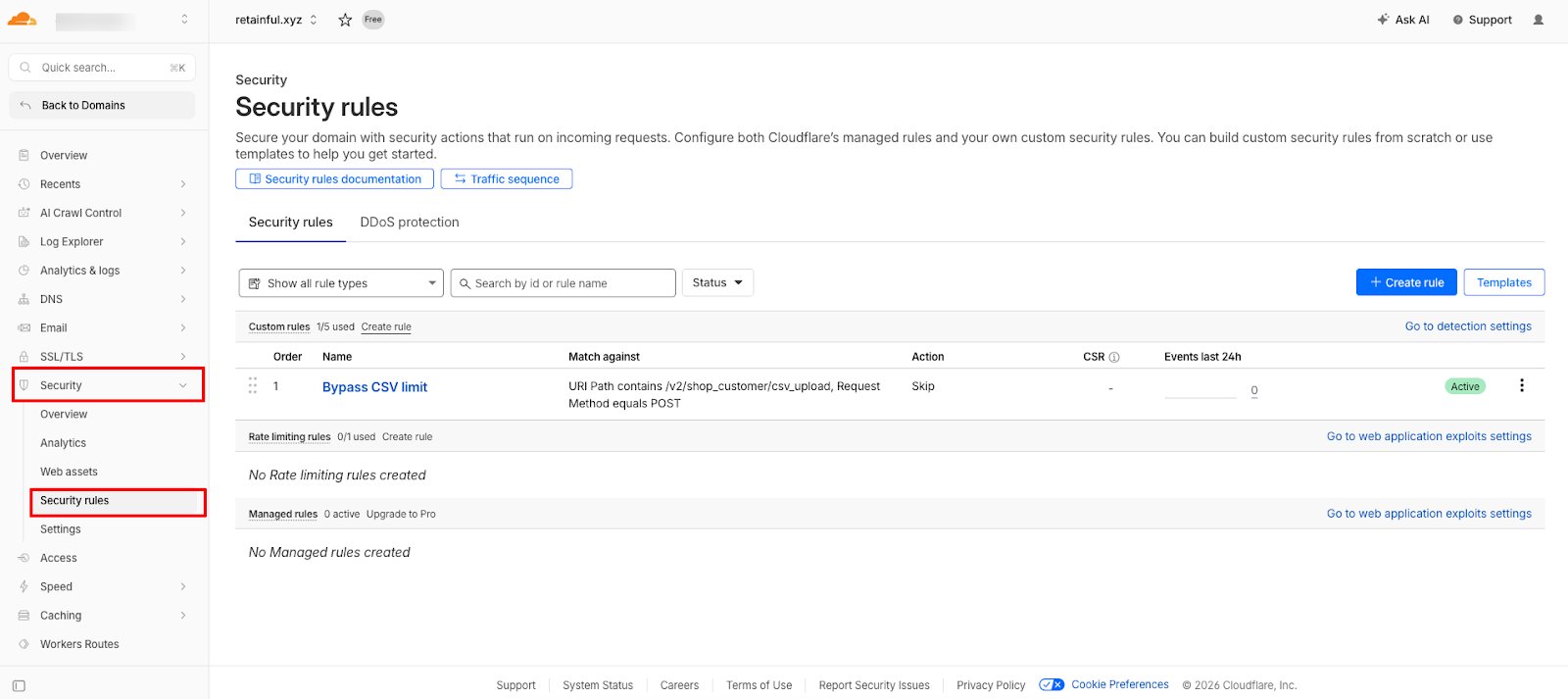
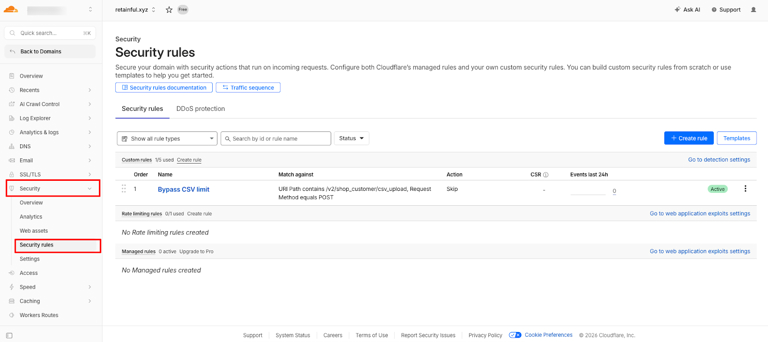
In the Cloudflare dashboard, select your domain, then go to **Security → Security rules**.
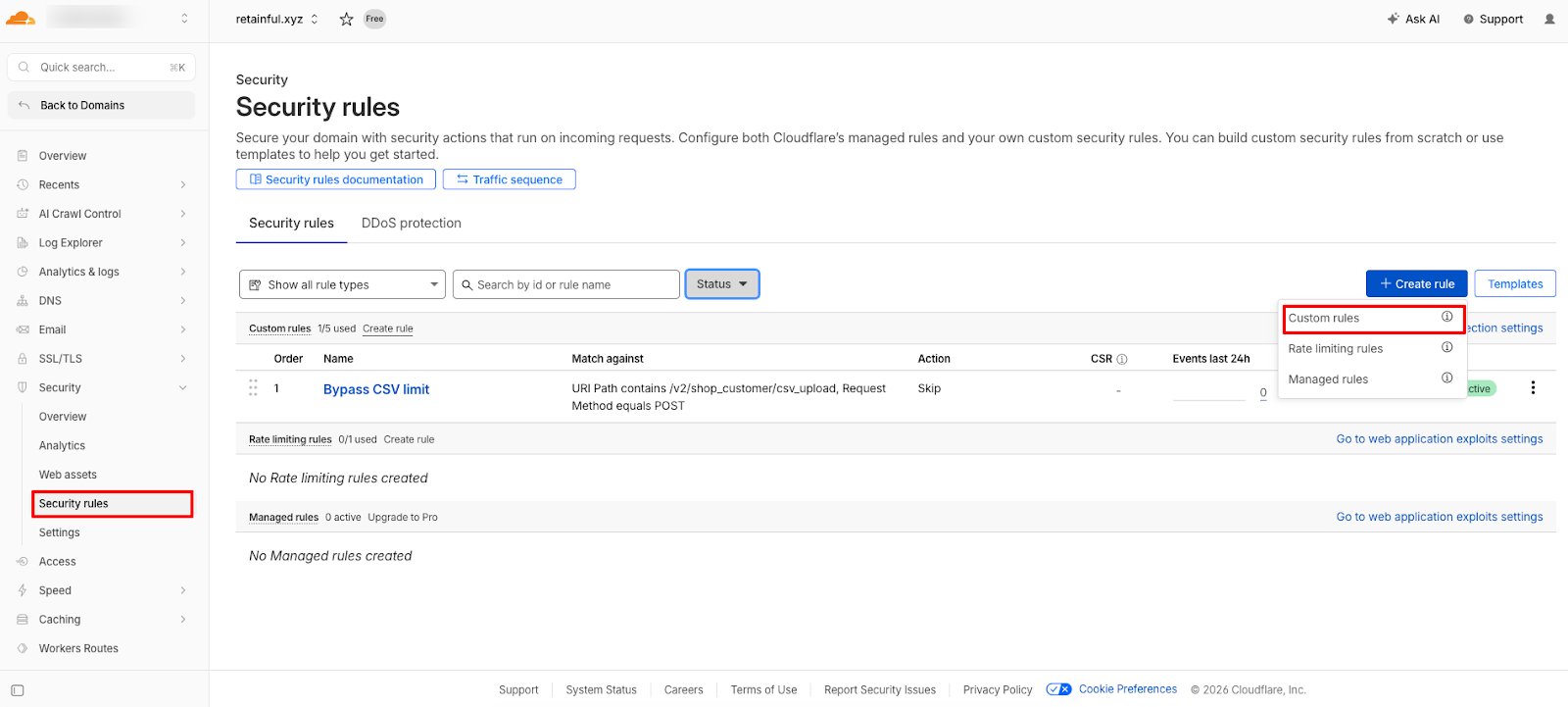
 Click **Create rule** and choose **Custom rules**.
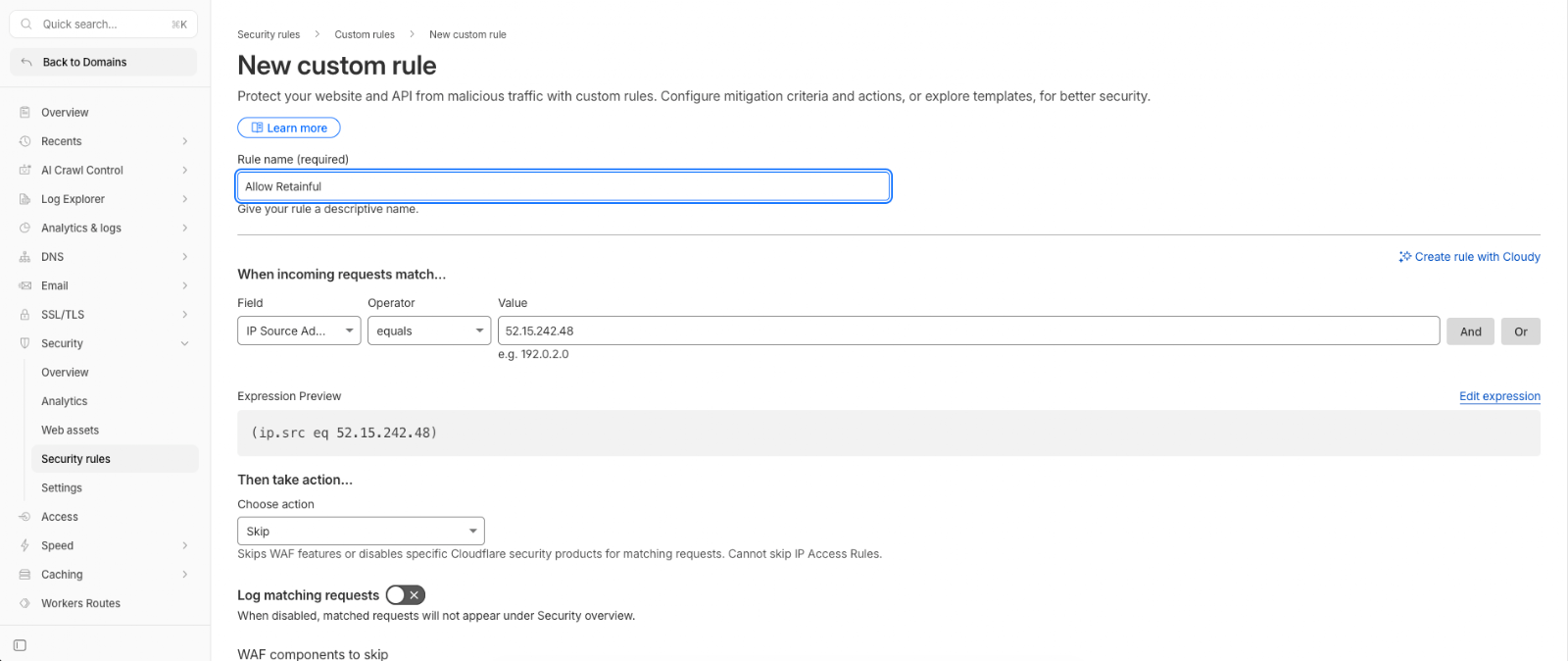
 Give the rule a name and match on Retainful's address:
| Setting | Value |
| --------- | --------------------- |
| Rule name | `Allow Retainful` |
| Field | **IP Source Address** |
| Operator | **equals** |
| Value | `52.15.242.48` |
The expression preview should read `(ip.src eq 52.15.242.48)`.
Give the rule a name and match on Retainful's address:
| Setting | Value |
| --------- | --------------------- |
| Rule name | `Allow Retainful` |
| Field | **IP Source Address** |
| Operator | **equals** |
| Value | `52.15.242.48` |
The expression preview should read `(ip.src eq 52.15.242.48)`.
 Under **Then take action**, choose **Skip**.
Under **WAF components to skip**, tick all four:
* All remaining custom rules
* All rate limiting rules
* All managed rules
* All Super Bot Fight Mode rules
Then click **Deploy**.
Under **Then take action**, choose **Skip**.
Under **WAF components to skip**, tick all four:
* All remaining custom rules
* All rate limiting rules
* All managed rules
* All Super Bot Fight Mode rules
Then click **Deploy**.
 ## Step 4: Reconnect your store
Return to Retainful and try connecting your store again. See [Connect WooCommerce](/integrations/woocommerce) for the full connection flow.
## Why this happens
Installing the plugin correctly isn't enough on its own. Retainful confirms the installation by calling your store, so if your server blocks that call, verification fails and we report the plugin as missing — even though it's sitting there, installed and active. Allowing our IP through lets the check complete.
## Still stuck?
If the connection still fails after allowing our IP:
* Temporarily disable security plugins such as Wordfence or Sucuri and retry, to confirm whether they're the cause.
* Check with your host about server-level firewalls that sit in front of WordPress.
* Email [support@retainful.com](mailto:support@retainful.com), or [book an onboarding call](https://zcal.co/retainful/onboarding).
## Step 4: Reconnect your store
Return to Retainful and try connecting your store again. See [Connect WooCommerce](/integrations/woocommerce) for the full connection flow.
## Why this happens
Installing the plugin correctly isn't enough on its own. Retainful confirms the installation by calling your store, so if your server blocks that call, verification fails and we report the plugin as missing — even though it's sitting there, installed and active. Allowing our IP through lets the check complete.
## Still stuck?
If the connection still fails after allowing our IP:
* Temporarily disable security plugins such as Wordfence or Sucuri and retry, to confirm whether they're the cause.
* Check with your host about server-level firewalls that sit in front of WordPress.
* Email [support@retainful.com](mailto:support@retainful.com), or [book an onboarding call](https://zcal.co/retainful/onboarding).